

Polina Merzlikina
Data Engineer / Data ScientistHow to Transfer Data from PostgreSQL to BigQuery: Data Transfer vs Datastream
One of the goals of modern analytics is to reduce the number of interfaces you need to work with. In other words, instead of dozens of different services, consolidate everything into a single, easy-to-understand dashboard. And building such a dashboard is usually preceded by collecting data from various systems (databases, ad platforms, CRMs) in one place. If BigQuery is your data storage of choice, this article is for you.
There are many ways to transfer data from one place to another — in this piece, I'll cover the two most deeply integrated with Google Cloud: the native services Data Transfer and Datastream. We'll use PostgreSQL as an example source, but even if you don't use it, the article may still be useful: both services support other sources as well (covered in more detail here and here), and the principles for choosing between batch transfer and streaming replication are universal.
Data Transfer and Datastream are native parts of Google Cloud: no need to connect third-party tools or step outside the Google Cloud ecosystem. Both are also under active development, which is what prompted me to describe them in more detail.
This article is a practical step-by-step guide and will be useful for data engineers and analysts who enjoy going deep on the technical level and have experience working with Google Cloud. You'll also need access to PostgreSQL settings — or collaboration with whoever administers it — as some steps can't be completed without that.ага
All calculations and screenshots in this article are current as of April 2026. For your own cost calculations, refer to the current documentation.
Below we’ll cover the limitations, setup steps, and comparison of Data Transfer and Datastream — here’s the full outline:
What to determine before choosing a tool:
Before choosing a data export tool (whether one of those described in this article or any other), you need to define your data transfer requirements.
The following questions will help with both tool selection and cost estimation, and will clarify which requirements are critical for you:
- What volume of historical data needs to be loaded into BigQuery?
- How often should data be updated in BigQuery? Is real-time updating required?
- What volume of data changes or is created within a given time period? (relative to the desired update frequency)
Here is how the two services compare across key criteria:
High-level comparison of Data Transfer Service and Datastream
| Criterion | Data Transfer | Datastream |
|---|---|---|
How it works | Scheduled batch transfers (min. 15 min) | Continuous streaming replication. |
Minimum data latency | From 15 minutes. | From a few seconds. |
Setup complexity | Low — a login/password for PostgreSQL and network access is sufficient. | Medium — requires configuring logical replication, publication, replication slot, and connection profile. |
PostgreSQL Preparation | Create a user with SELECT access + configure network access to PostgreSQL. | Depends on your DB hosting, but generally: enable WAL, create a publication, replication slot, and a user with replication privileges. |
Write modes | Full (overwrite). | Merge (sync) or Append only (change history). |
Pricing (model) | Per connector slot-hours (predictable, tied to runtime). | Two components — (1) GiB of transferred changes, (2) BigQuery compute for merge operations, which depends on table size and merge frequency (max_staleness). The second component can dominate for large tables. |
Cost predictability | High (known number of run × known runtime). | Low — three drivers simultaneously: volume of changes, table size, and max_staleness. |
Best suited for |
|
|
Before moving to the setup steps, a few words about the data I used to test both services.
Test dataset for examples
To make this article genuinely practical and reproducible, I used the the public Brazilian E-Commerce dataset from Olist. All figures and screenshots in this article come from testing on this dataset.
This is real anonymized data covering ~100k orders from Brazilian marketplaces for 2016–2018 (9 tables: orders, products, payments, reviews, geolocation, etc.).
Keep in mind that data in BigQuery will occupy a different volume than in PostgreSQL — due to differences in compression and storage model.
The best approach is to load a test slice of your own data into BigQuery to understand what the size ratio will be in your case.
How much space the data occupies in the DB and BigQuery for this dataset:
| PostgreSQL | BigQuery Logical storage |
|---|---|
147.32 MB | 111.89 MB |
How to set up Data Transfer Service to export PostgreSQL to BigQuery
Data Transfer Service was built to automate moving data into BigQuery on a schedule. Once a transfer is configured, data loads automatically on a defined regular basis.
Unlike Datastream, it requires almost no preparation on the PostgreSQL side — creating a user with SELECT privileges is sufficient.
In addition to PostgreSQL, the service supports other sources, but the principle is always the same: transfer from some system → BigQuery.
Data sources supported by Data Transfer Service
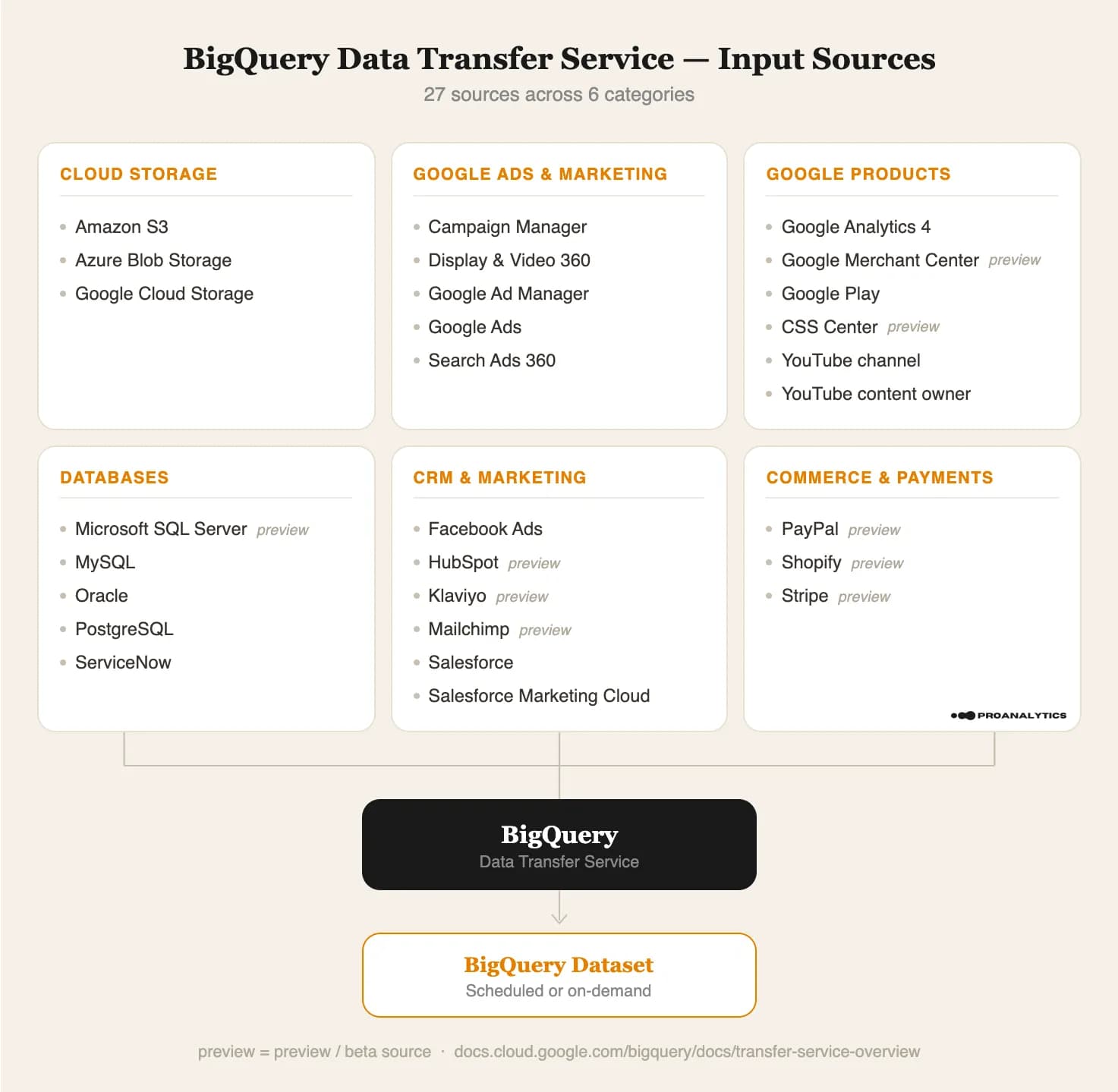
Below we’ll cover limitations, setup steps, pricing, and how to verify everything is working.
Data Transfer limitations for PostgreSQL
- The number of concurrent transfers is limited by your database’s capacity (i.e., the number of simultaneous connections it can handle).
- Within a single transfer configuration, runs execute sequentially: if the previous run hasn’t finished by the time the next one is scheduled, the next one is skipped — keep this in mind when choosing run intervals.
- For fast and reliable operation, the documentation recommends that tables have primary keys or indexed columns. This enables parallel and faster data transfer. Without keys or indexes, a table cannot contain more than 2 million rows for transfer.
- Some PostgreSQL types (e.g., numeric without precision) are converted to STRING in BigQuery. Pay attention to the type mapping in the documentation.
Prerequisites
- IAM role: if you don’t have full access to your Google Cloud project (Owner), your account will need the BigQuery Admin role (
roles/bigquery.admin). - A dedicated PostgreSQL user with the appropriate SELECT permissions on the relevant tables.
- Network access: PostgreSQL must be accessible from outside. If your PostgreSQL does not have a public IP (e.g., it’s in a private network or behind a firewall), you may need additional network attachment configuration.
Step-by-step Data Transfer setup
Let’s walk through the transfer configuration steps (I’m also including a link to the Google guide):
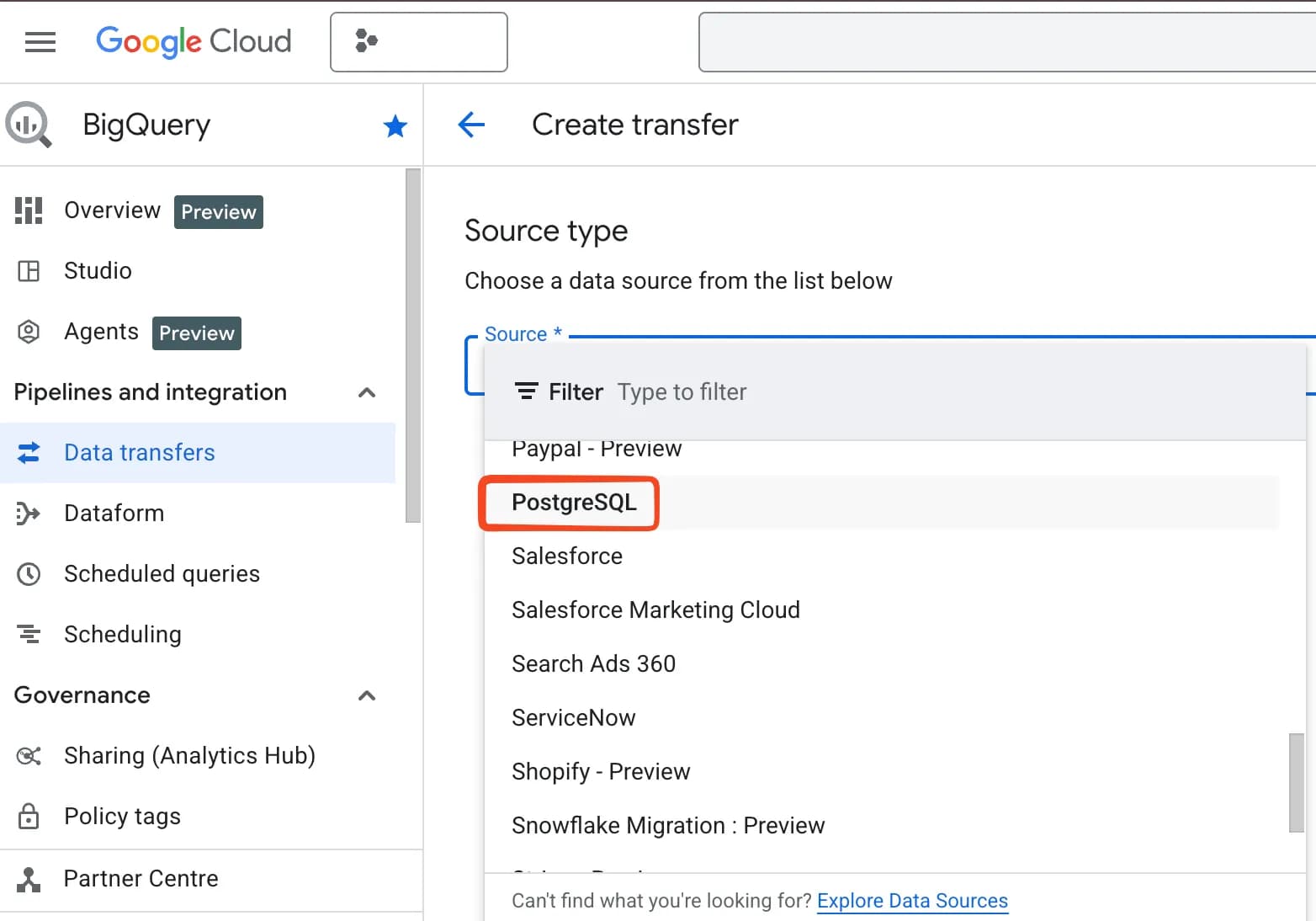
- Go to the Data Transfer service page in your Google Cloud and select “+ Create transfer”, then choose PostgreSQL as the Source type.
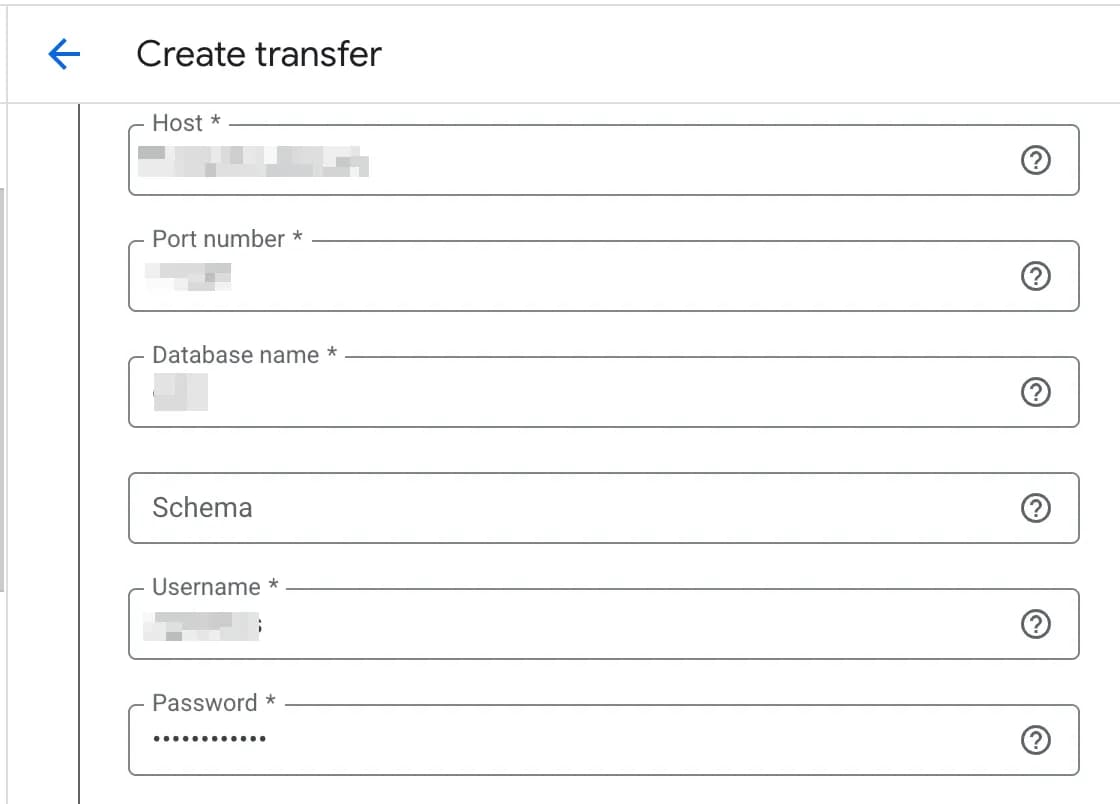
2. Enter all the required database connection details.
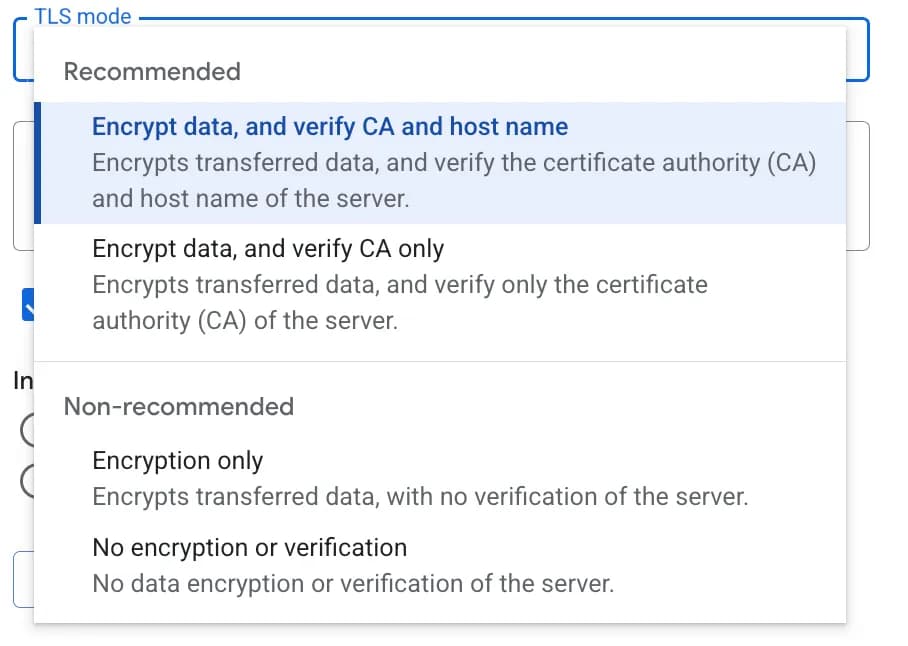
3. Select TLS mode.
TLS mode is the connection security level setting between Data Transfer and your PostgreSQL database. In essence, it determines two things: whether traffic is encrypted, and whether the server’s identity is verified.
The connector supports four TLS modes for connection encryption:
- Encrypt data, and verify CA and host name — the most secure option. Encrypts data and verifies both the certificate and the server hostname. Requires a TLS certificate signed by a trusted CA; the server hostname must match the CN or SAN in the certificate. When using a private CA, you must provide the full trust chain (server certificate + intermediate + root CA).
- Encrypt data, and verify CA only — encrypts data and verifies the certificate, but not the hostname. Same certificate requirements as above, but without the need to configure DNS/hostname. Useful when you don’t control the hostname or it doesn’t match the certificate.
- Encryption only — encrypts data but verifies neither the certificate nor the hostname. It’s sufficient to enable TLS on the PostgreSQL side (
ssl = on in postgresql.conf); even a self-signed certificate will work. Google recommends this option when operating through private VPCs.
4. Select Ingestion type:
- Full — each run fully overwrites all data from the tables. The logic is simple, but it can consume a lot of resources for large tables and take a long time.
- Incremental (Preview) — has Append and Upsert sub-modes; according to the documentation, this mode loads only changed data.
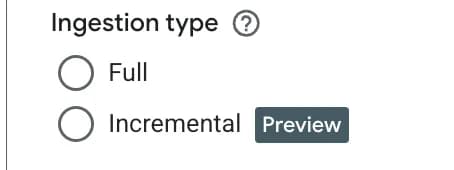
The Incremental option is currently in Preview status at the time of writing. In my tests, I was unable to configure it — the UI didn’t allow table selection. So we won’t cover it in detail here, but once it exits Preview it will be worth considering.
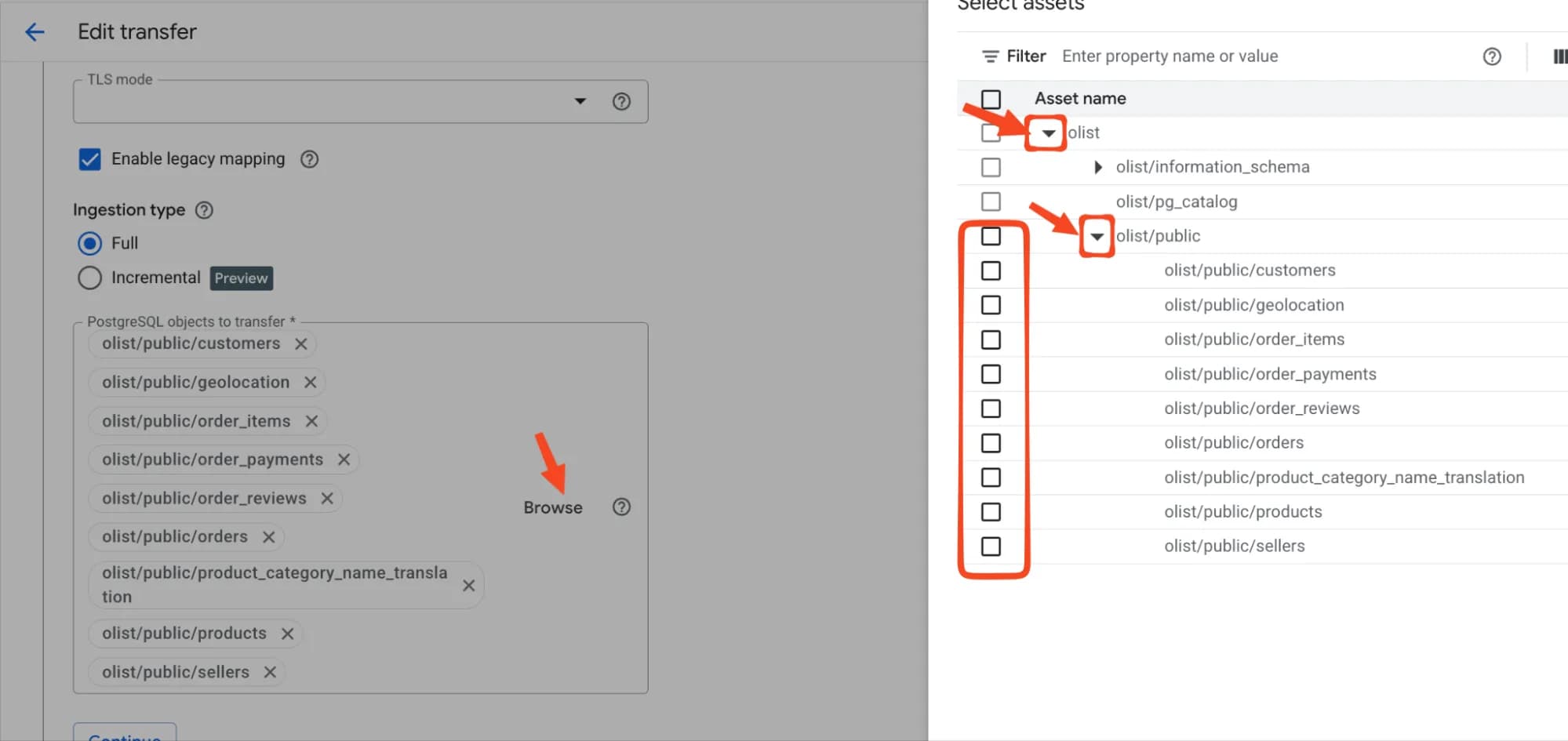
5. Select the tables to export in the “PostgreSQL objects to transfer” field — you can either type them in the text field in {database}/{schema}/{table} format, or select them using the Browse button (checkboxes become available after expanding the collapsed lists). If clicking Browse produces errors, review all your PostgreSQL connection details.
6. Select the destination dataset.
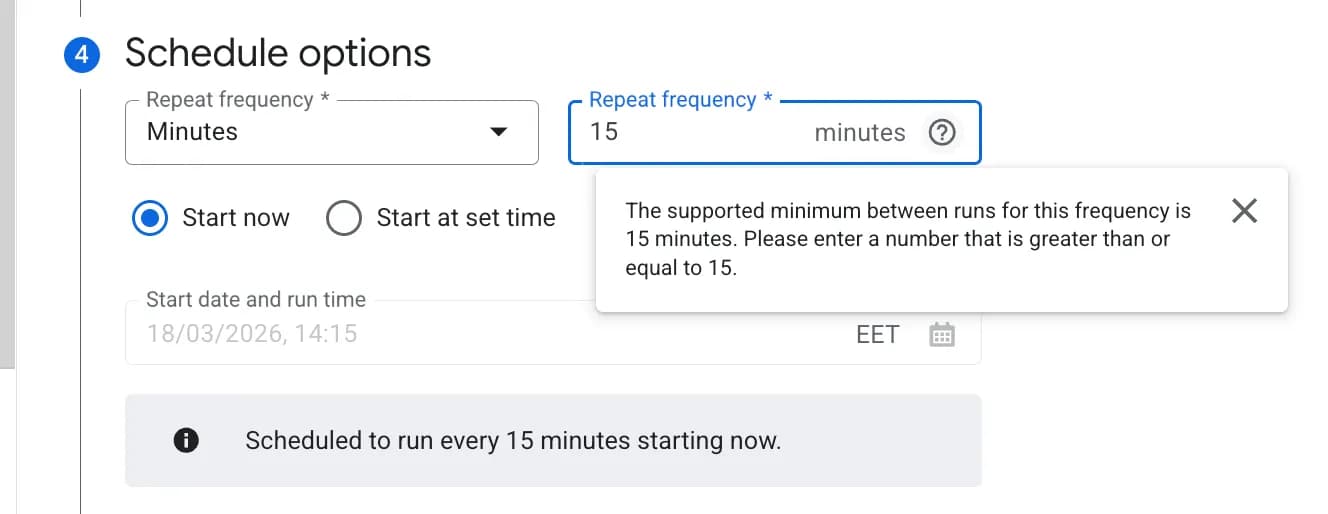
7. Select your desired run schedule and save the configuration.
The minimum interval for PostgreSQL is 15 minutes (though for some other sources, such as Google Ads, the minimum interval will differ), and there is also an On demand option if you only need manual runs without a schedule (e.g., for a one-time migration).
Keep in mind that data transfer creates additional load on your database, so it’s best to schedule runs outside your peak business hours (e.g., at night for daily exports).
How to verify Data Transfer service is working
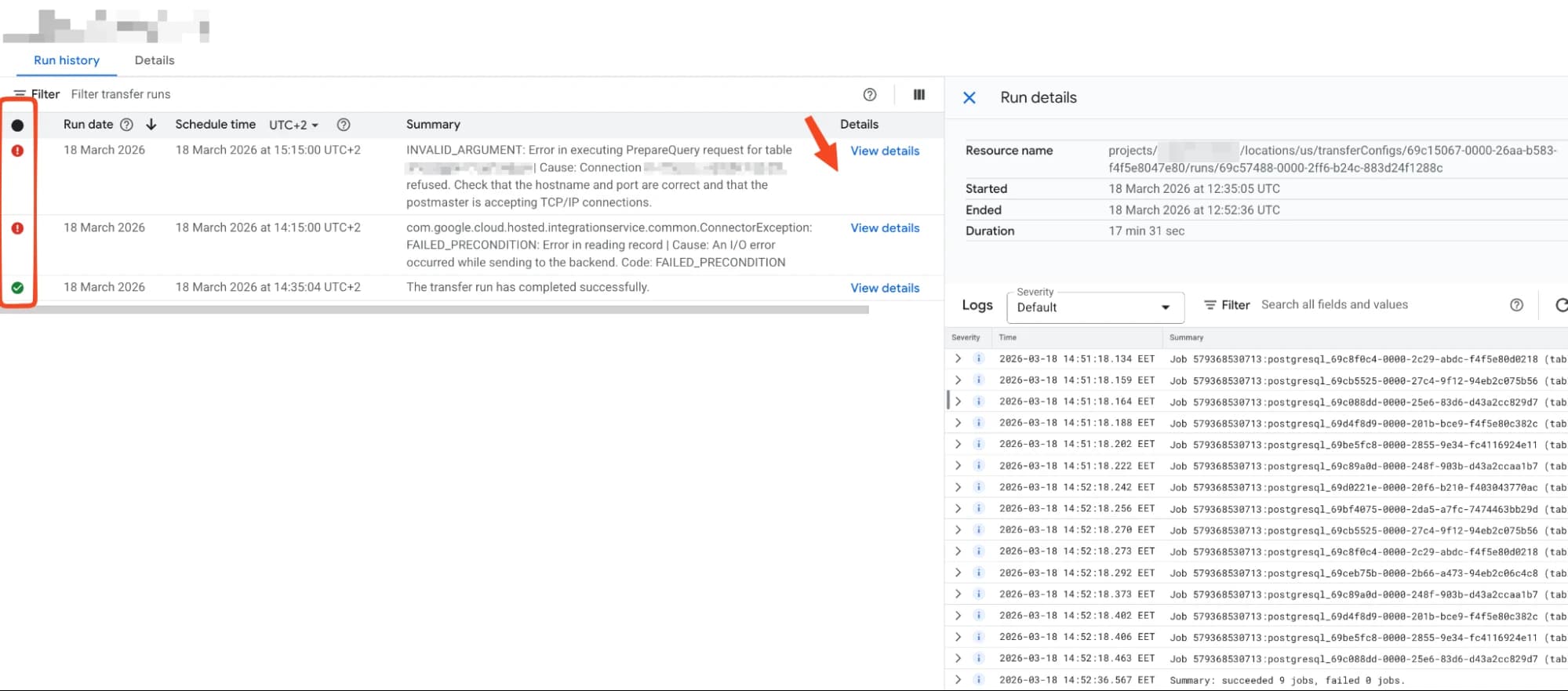
To verify that the transfer you created is running correctly, go to the Run history, it contains the full run history and run logs.
If there were errors in any runs, their cause can be examined in more detail in the View details.
How much does Data Transfer cost
The following covers costs for Google Cloud services only; depending on where your data is hosted (AWS, your own server, etc.), there may be additional costs in those systems, for example for outbound traffic.
- Transfer Orchestration: resources for running the connector. Not all connectors are priced the same.
Free connectors: Google ecosystem and data storage connectors (Google Ads, GA4, Cloud Storage, Amazon S3, Azure Blob Storage, and others), as well as connectors in Preview status — Google will start charging once they reach general availability.
PostgreSQL is part of the Paid connectors (along with MySQL, Oracle, Salesforce, ServiceNow, Facebook Ads, SFMC) and is billed based on actual usage in slot-hours.
A slot-hour is a unit of BigQuery compute capacity (a virtual CPU). One slot running for one hour = one slot-hour.
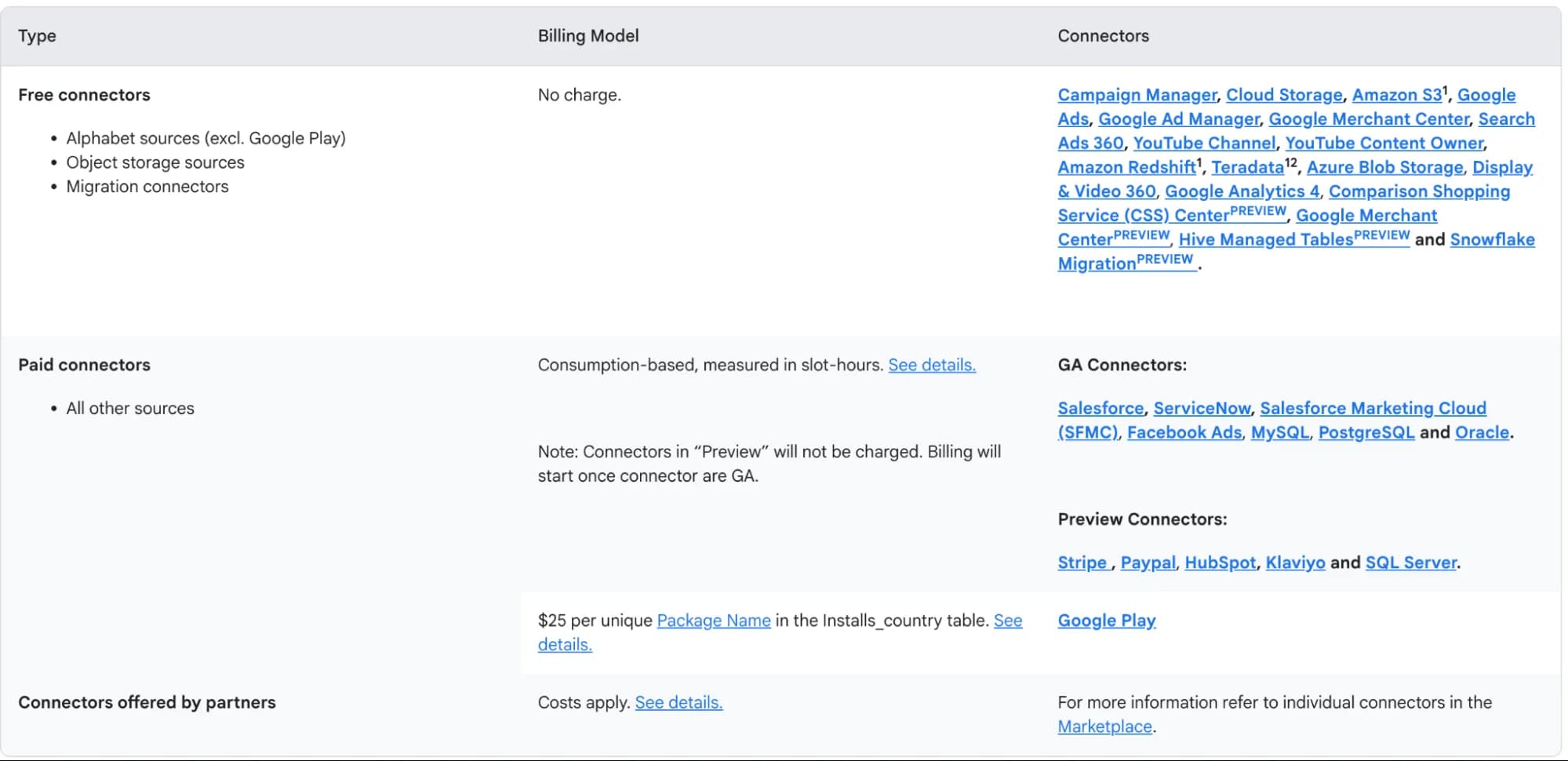
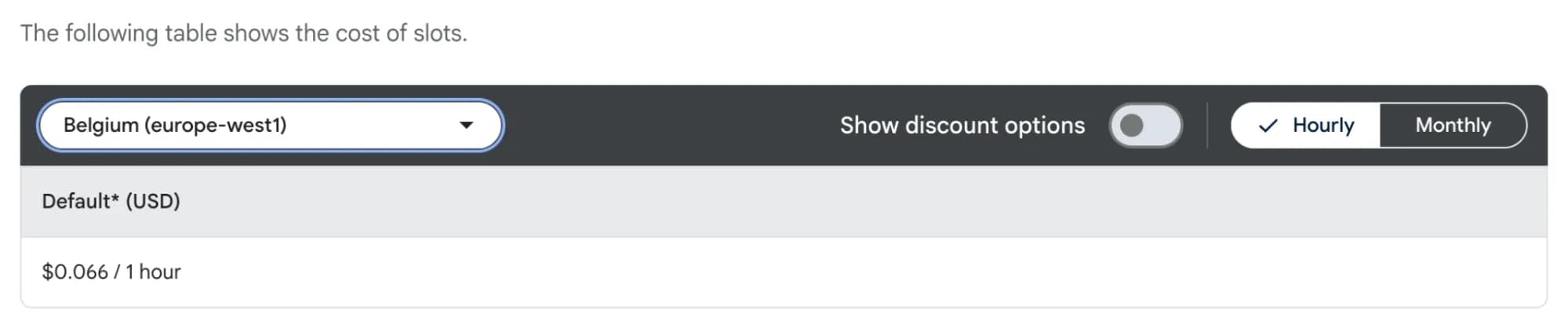
The cost depends on the region. To calculate the cost, select your region from the list.
The documentation recommends using a benchmark of up to 20 slot-hours per hour of transfer runtime for cost estimation, without specifying for what data volume, so the real picture for your data can only be seen during a test export.
To estimate monthly cost, multiply the number of slot-hours by the run frequency and account for future data growth.
For the dataset mentioned in this article, a single data transfer with the settings and data described above took approximately 17 slot-minutes (≈0.28 slot-hours) (connection quality and speed to the DB may also affect this).
Assuming the transfer runs once a day in the europe-west1 region at $0.066/slot-hour, the Transfer Orchestration cost would be approximately runs_per_month × slot_hours_per_run × price_per_slot_hour = 30 × 0.28 × $0.066 = $0.56 (excluding future data growth), meaning even with some buffer for a 200MB database we stay well under $1.
- Data Loading & Processing: resources for loading and merging data into the destination table. The cost of this component depends on the operation type:
- Load — free for BigQuery Native Tables. These are the standard load jobs that run with each data transfer.
- Merge — billed at standard BigQuery rates. Merge occurs when using Incremental ingestion with Upsert write mode — that is, when data is not just appended but compared against existing records and updated.
In short, if you use Full ingestion, you only pay for Transfer Orchestration. With Incremental + Upsert, the cost of merge operations at standard BigQuery rates is added on top.
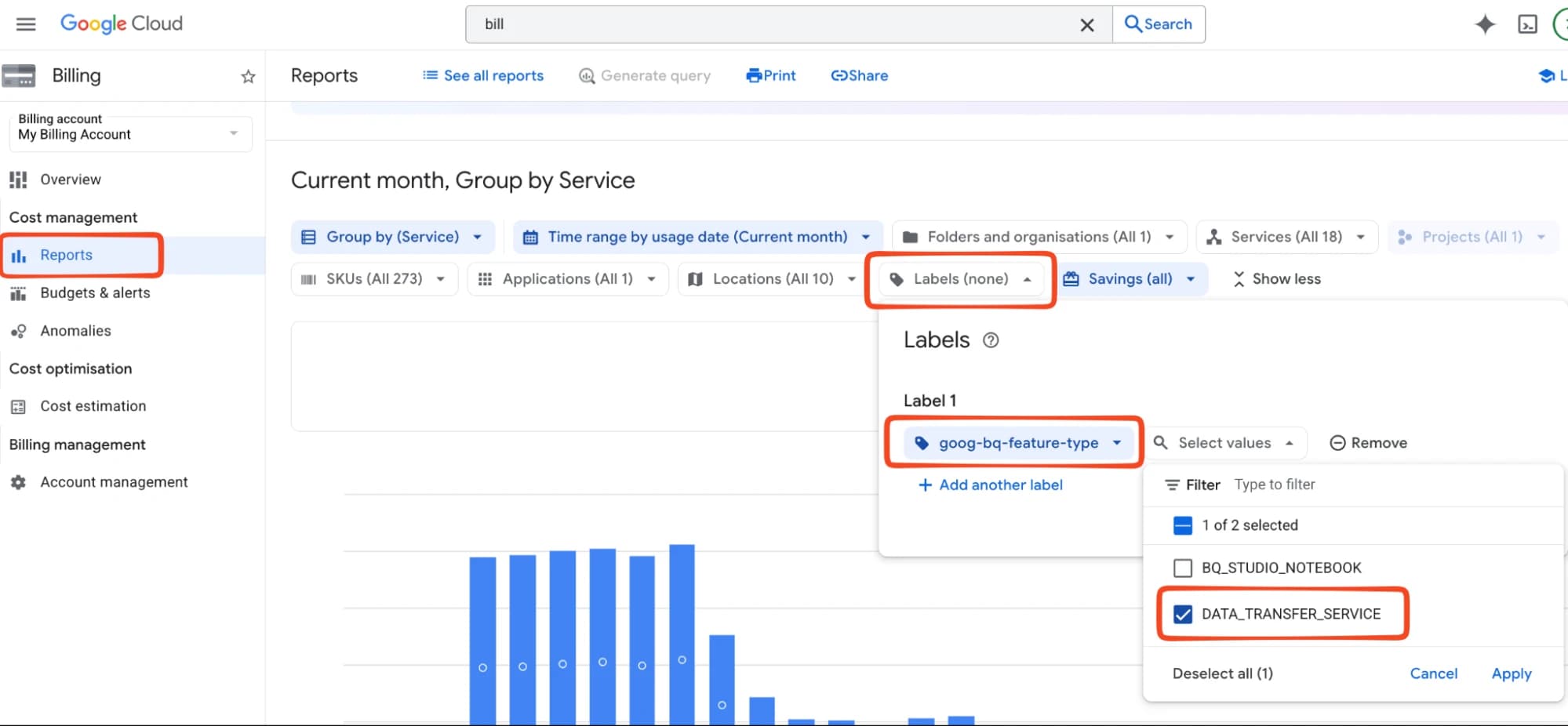
You can conveniently view Data Transfer costs in Billing Report → Labels: key=goog-bq-feature-type, value=DATA_TRANSFER_SERVICE, but keep in mind that billing report data takes about a day to update and won’t be available in real time.
How to set up Datastream to export PostgreSQL to BigQuery
If Data Transfer is scheduled dispatches, then Datastream is a continuous pipeline.
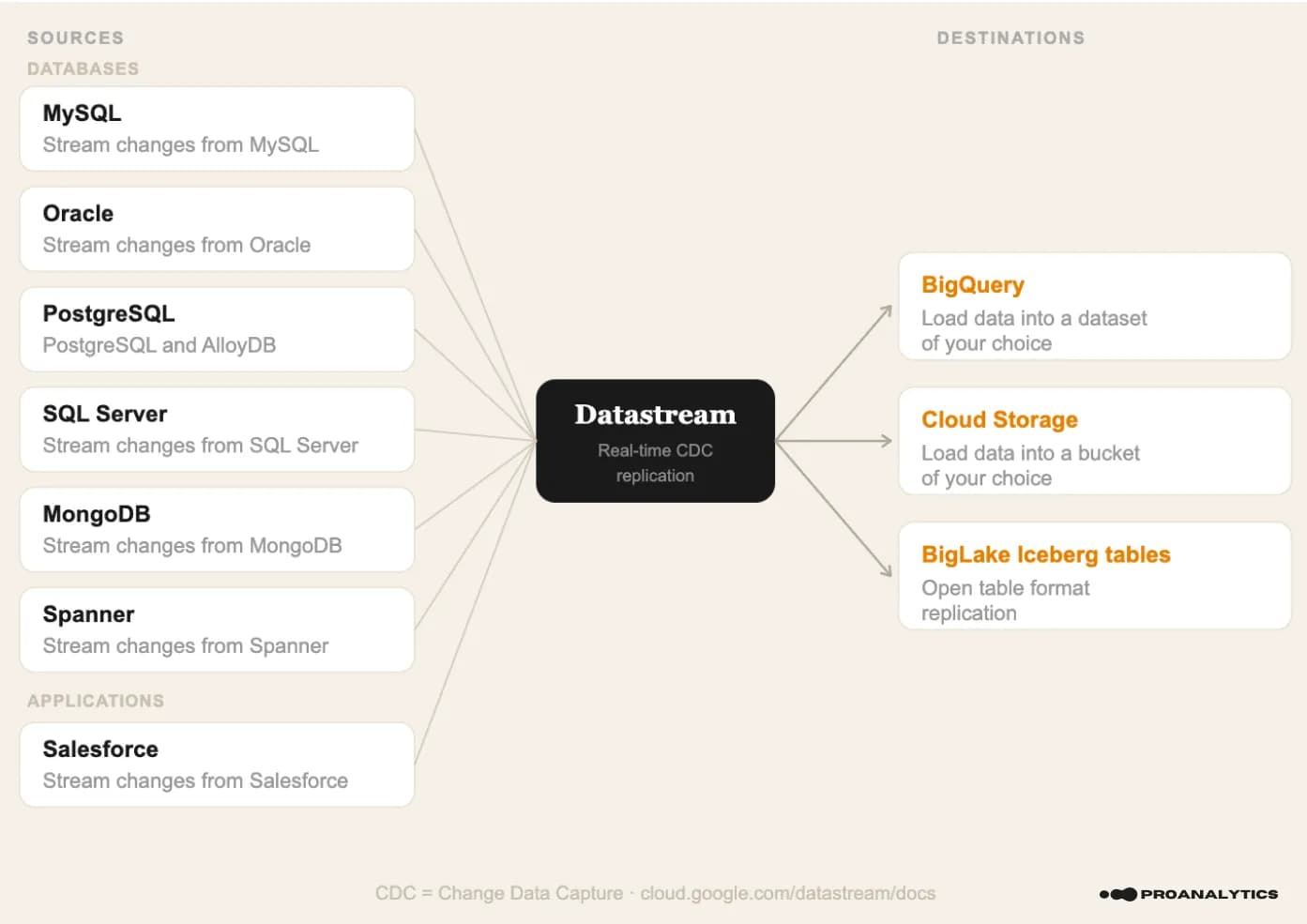
Datastream is a serverless Google Cloud service for real-time data replication using the CDC (Change Data Capture) mechanism. Unlike Data Transfer, which runs on a schedule and loads data in “batches,” Datastream continuously monitors database changes and delivers them to BigQuery with minimal latency.
As a source, Datastream also supports other systems (MySQL, Oracle, SQL Server, MongoDB, Spanner, Salesforce), and besides BigQuery it can also write to Cloud Storage. Datastream setup is more complex than Data Transfer — you need to prepare the database and create connection profiles. I’ll walk through it step by step below.
Data sources supported by Datastream
It has two operating modes (with different pricing):
- CDC (Change Data Capture) — monitors and streams current changes from the source in real time: INSERT, UPDATE, DELETE.
- Backfill (initial data fill) — creates a historical copy of data that already exists in the table. It runs automatically when a stream is created, or can be triggered manually. If you already have a historical data export, the documentation contains additional information about using existing tables.
During replication, Datastream adds a system column datastream_metadata to BigQuery tables; its content depends on the selected write mode (merge / append-only) and the presence of a primary key (PK), for example in merge mode.

In append-only mode, the fields CHANGE_TYPE (INSERT / UPDATE-INSERT / UPDATE-DELETE / DELETE), CHANGE_SEQUENCE_NUMBER, and SORT_KEYS are added — without them it’s impossible to correctly reconstruct the order and type of changes from history. For tables without a PK in merge mode, the IS_DELETED field is added and the table automatically operates in append-only mode.
Datastream limitations for PostgreSQL
- For PostgreSQL as a source (only the main limitations are listed):
- A single stream supports up to 10,000 tables.
- Tables without a primary key must have
REPLICA IDENTITYconfigured, otherwise only INSERTs are replicated. - Tables with a primary key cannot have
REPLICA IDENTITY FULLorNOTHING— onlyDEFAULT. - With
REPLICA IDENTITY FULLon tables with more than 16 columns, the stream will not start (exceeds the BigQuery limit on primary keys in MERGE operations). - Tables with more than 500 million rows cannot be backfilled without a unique B-tree index with non-nullable columns.
- Tables with Row-Level Security are not supported.
- Read replicas as a source are not supported.
- Schema changes may not be tracked automatically (column deletion, column data type changes, column reordering).
- After a major PostgreSQL upgrade, the stream may stop working and you need to recreate the replication slot.
- For BigQuery as destination:
- The maximum size of a single event is 20 MB. An event is a single change to a single row (INSERT/UPDATE/DELETE). This is ample for typical tables, but can become a problem for rows with large
TEXT,JSON, orBYTEAcolumns. - The table primary key must be one of the supported types (DATE, BOOL, INT64, NUMERIC, STRING, TIMESTAMP, and others) — tables with
FLOATorREAL primary keys are not replicated. - You cannot add or remove a primary key from an already-replicated table without contacting Google Support.
- BigQuery does not support more than 4 clustering columns. If the primary key consists of more than 4 columns, Datastream still replicates all PK columns, but will only use the first four as clustering columns.
- The maximum size of a single event is 20 MB. An event is a single change to a single row (INSERT/UPDATE/DELETE). This is ample for typical tables, but can become a problem for rows with large
Prerequisites
Unlike Data Transfer, where providing a login/password for PostgreSQL is sufficient, Datastream requires more preparation on the database side. The detailed instructions depend on where your PostgreSQL is hosted. Configuration instructions for specific PostgreSQL types / deployments can be found in advance found in the documentation, or found directly in the stream setup interface.
Step-by-step Datastream setup
The Datastream service setup process consists of the following parts:
- stream configuration.
- creating two connection profiles — for the source (PostgreSQL) and the destination (BigQuery) — these can either be created fresh during stream setup or previously configured ones.
Pay close attention when selecting the region for connection profiles — if the regions don’t match, the stream will not be created
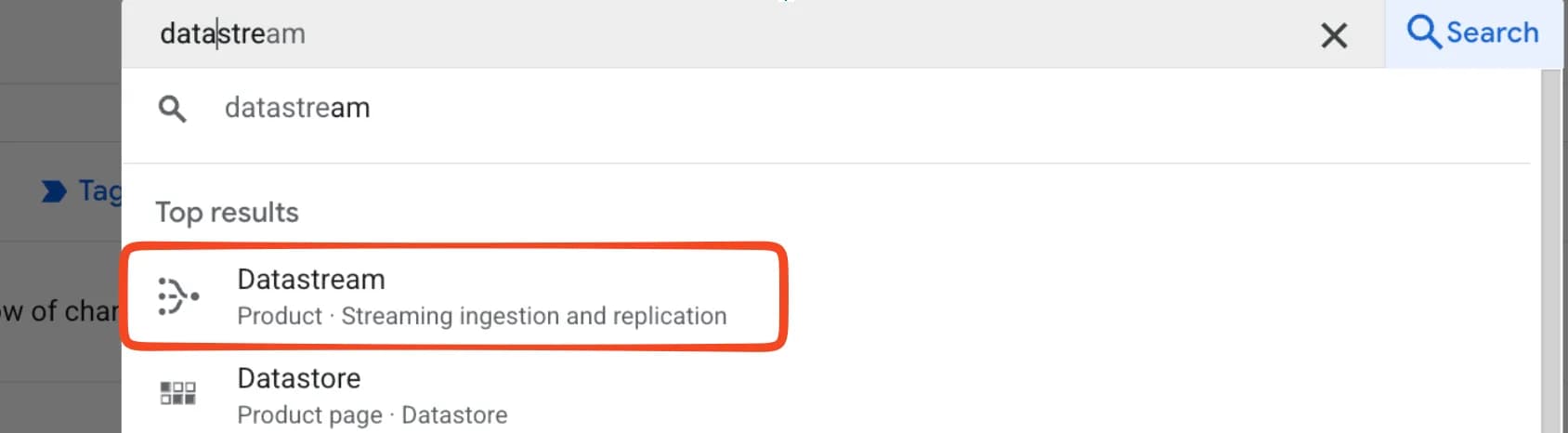
- To set up a stream, find Datastream in Google Cloud (search for "datastream").
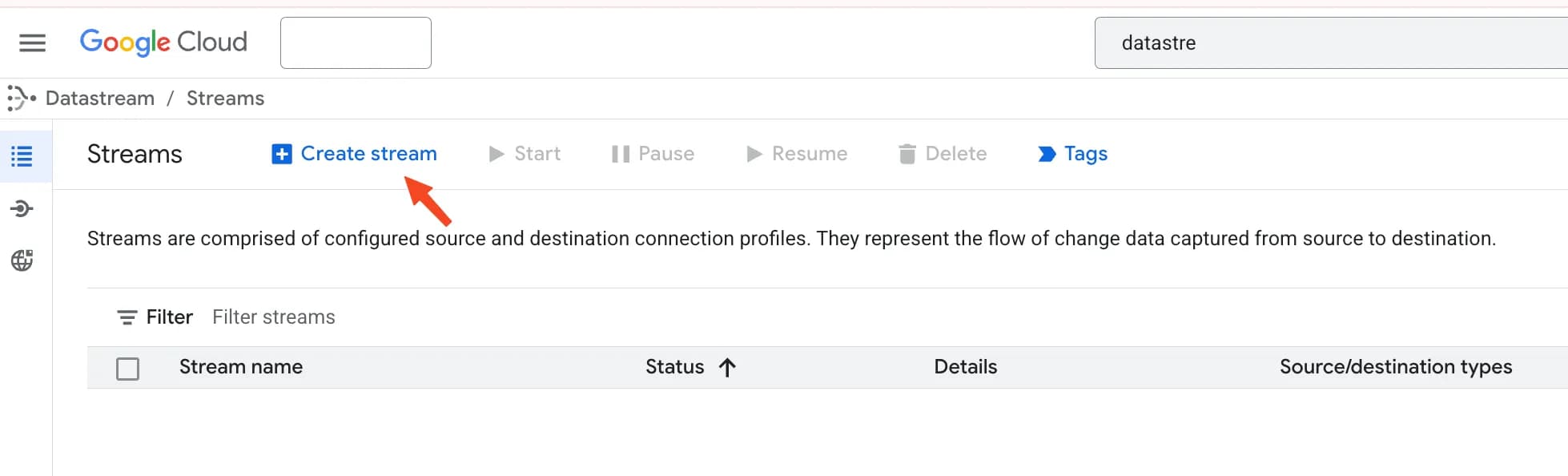
2. In the opened service, click Create stream.
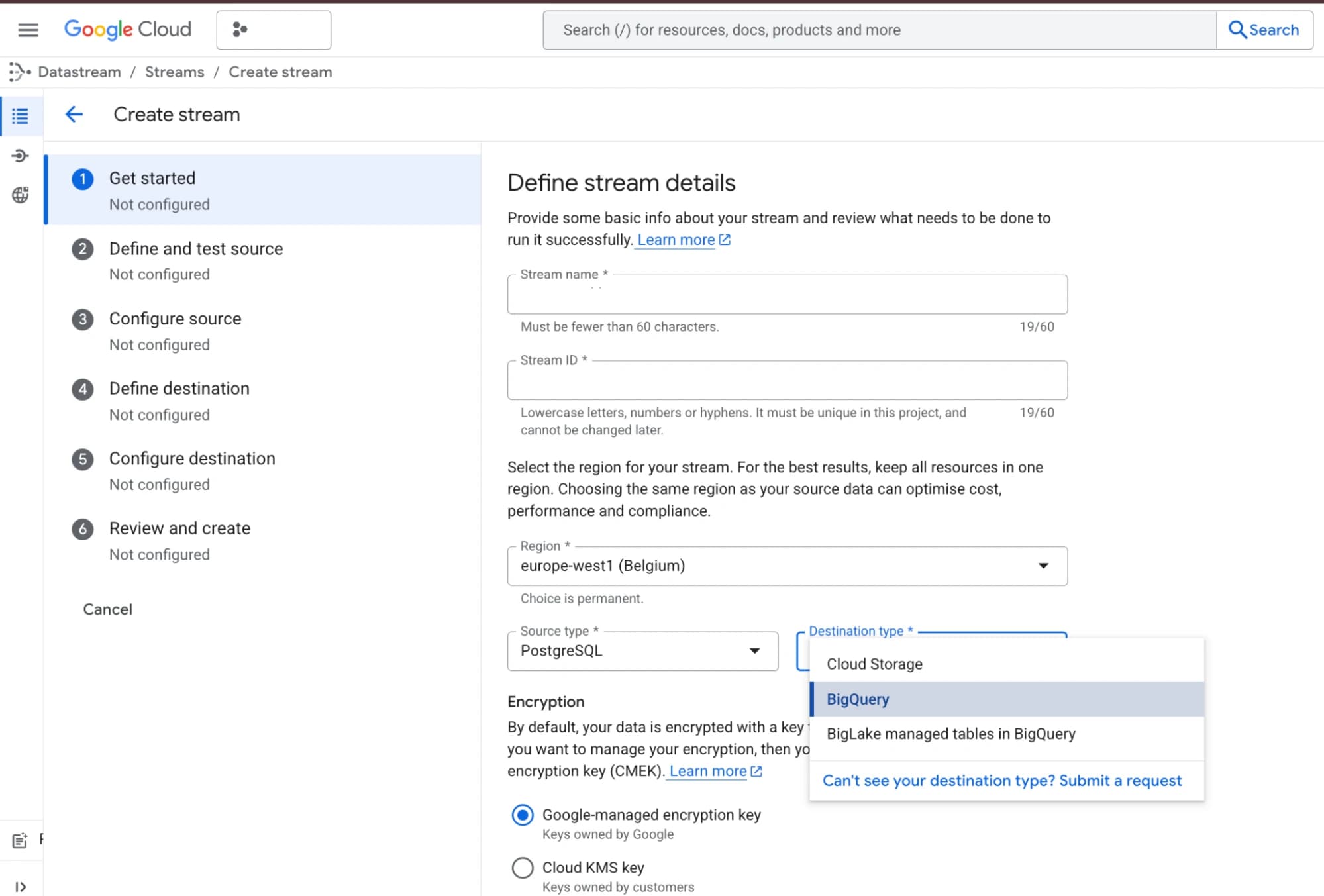
3. The stream settings page will open:
- 3.1 Fill in the basic values:
- stream name,
- region (recommended: the same region where your BigQuery dataset will be),
- source type = PostgreSQL, destination type = BigQuery.
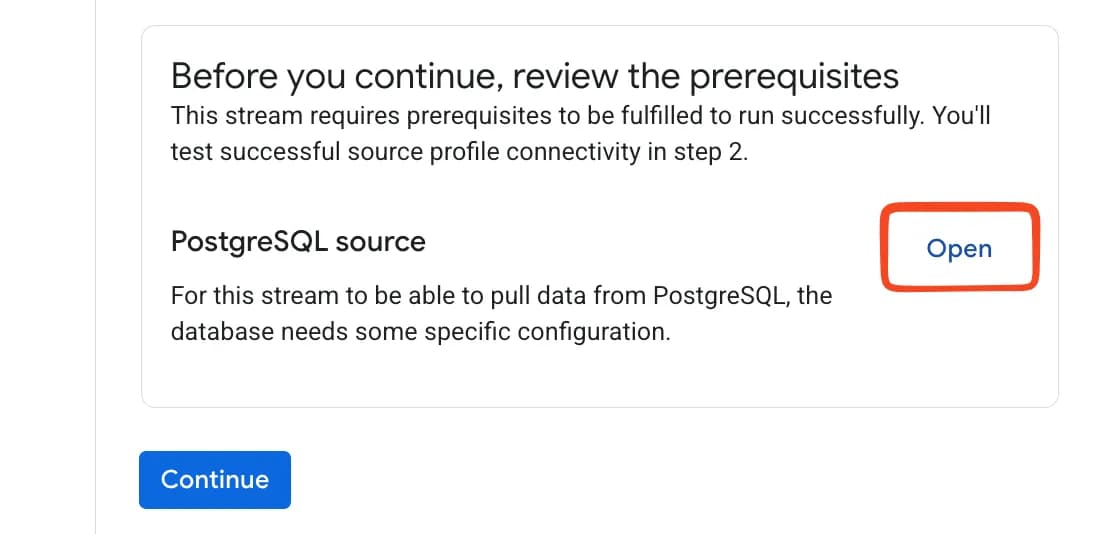
- 3.2 On the same page, instructions for additional PostgreSQL configuration will be available — to view them, click Open.
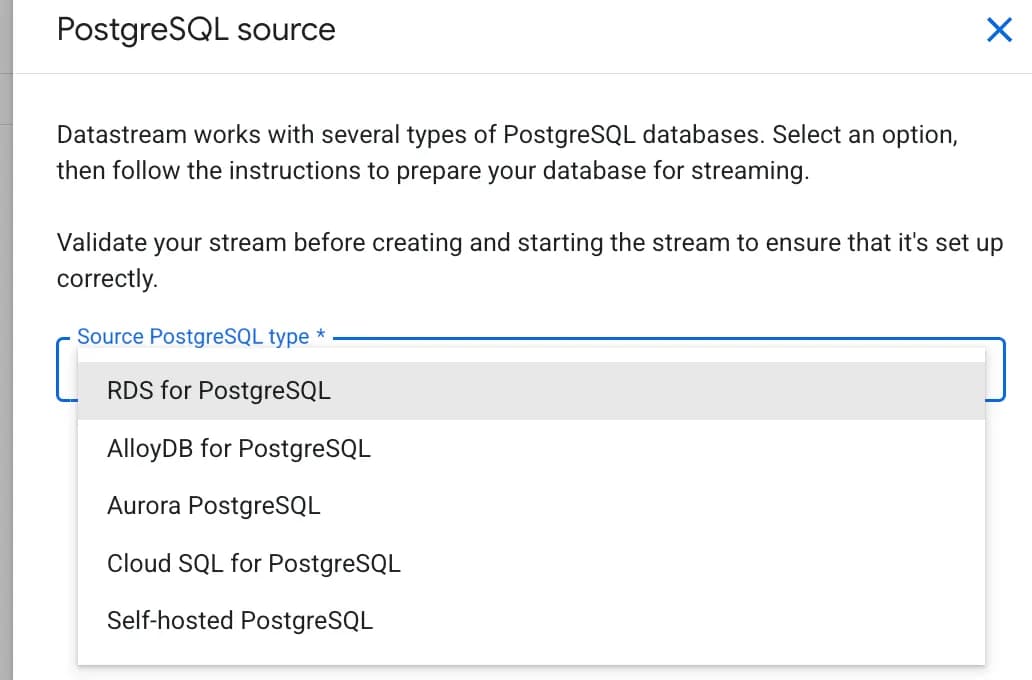
- 3.3 Select your PostgreSQL type (Cloud SQL, Self-hosted, RDS, Aurora, AlloyDB) — for each type the interface will display the corresponding DB preparation instructions.
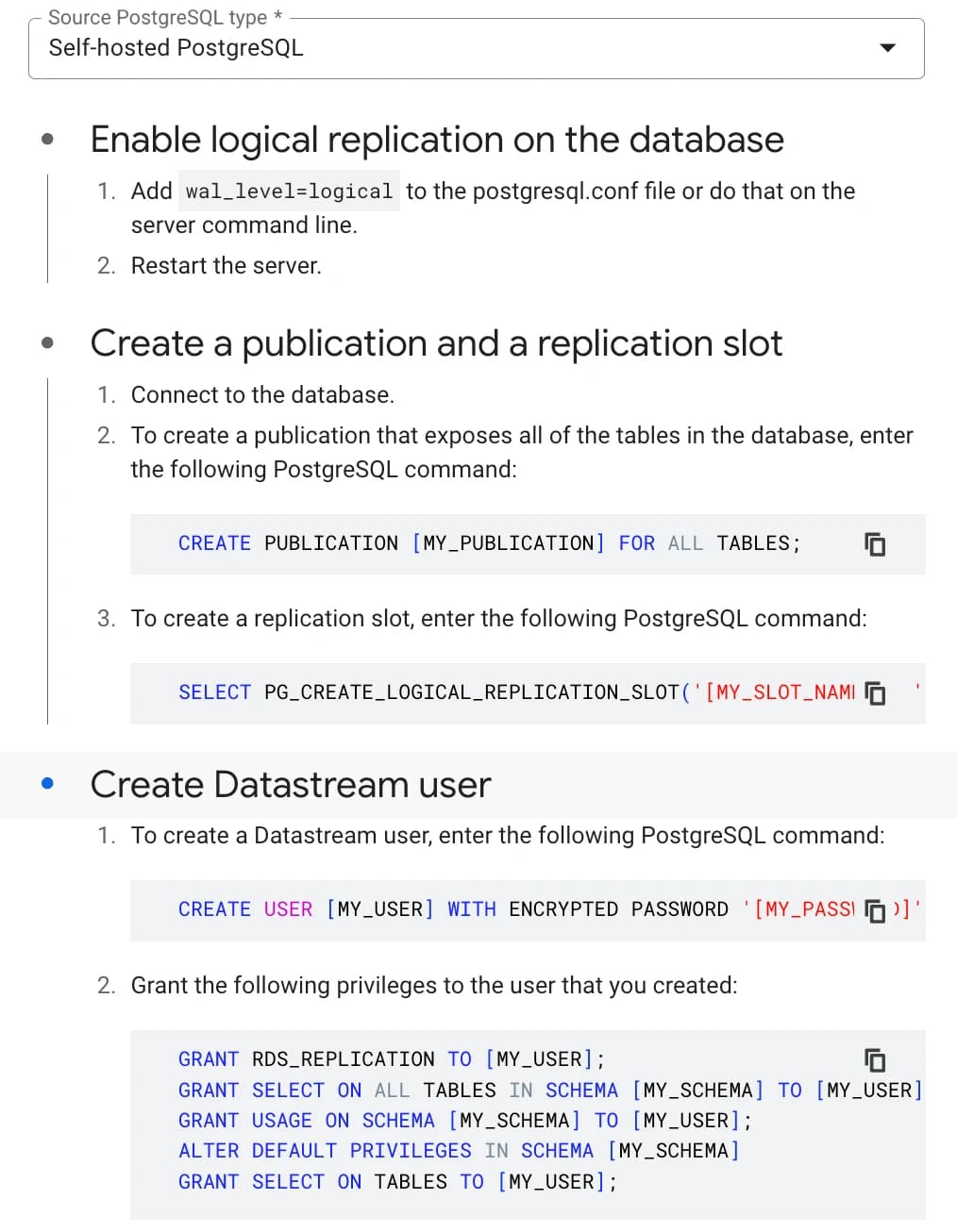
For example, for Self-hosted PostgreSQL the configuration will look like this (before running SQL commands, make sure you have selected the correct database in PostgreSQL).
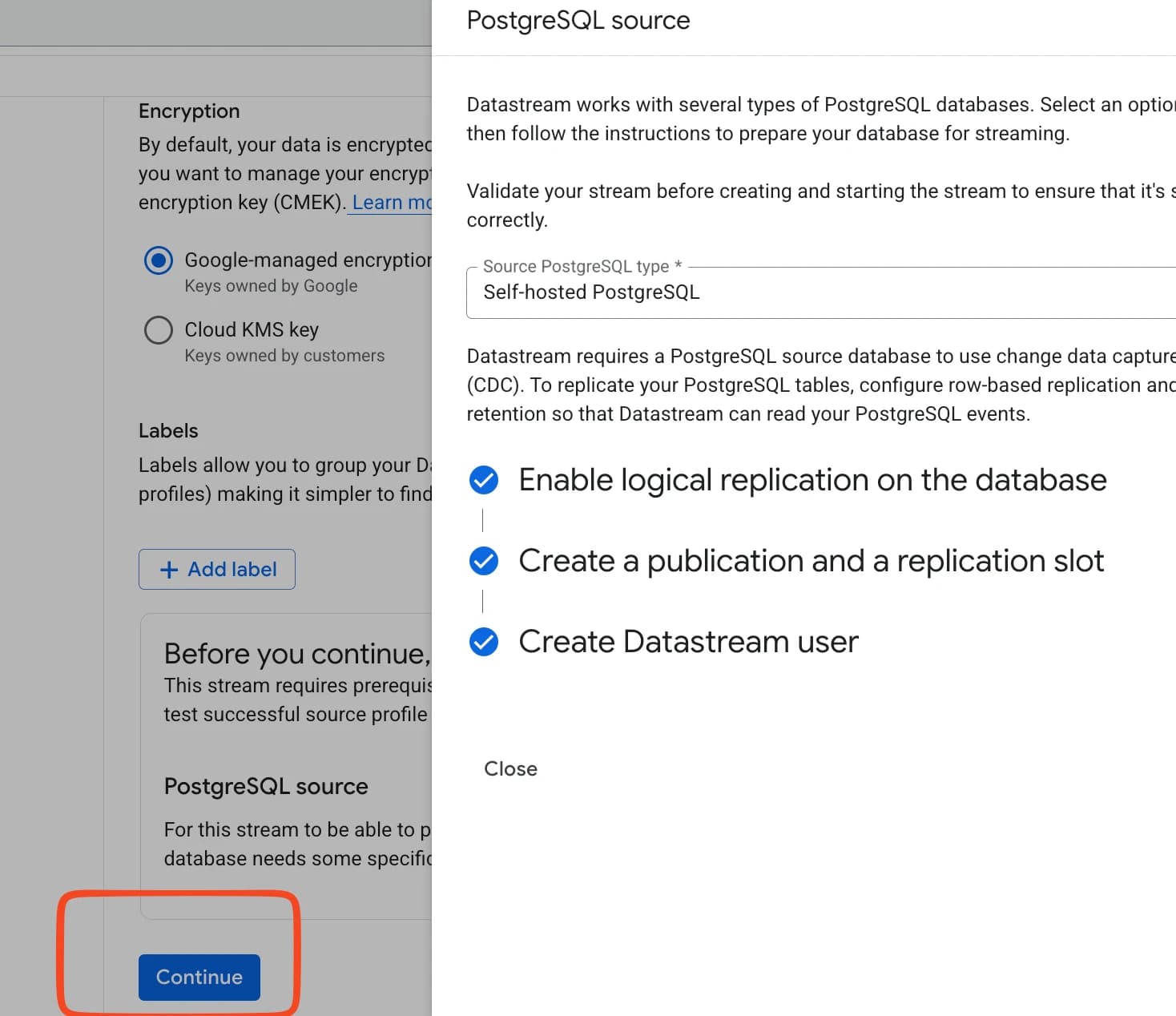
- 3.4 After configuring your PostgreSQL, click Continue to proceed to the next step.
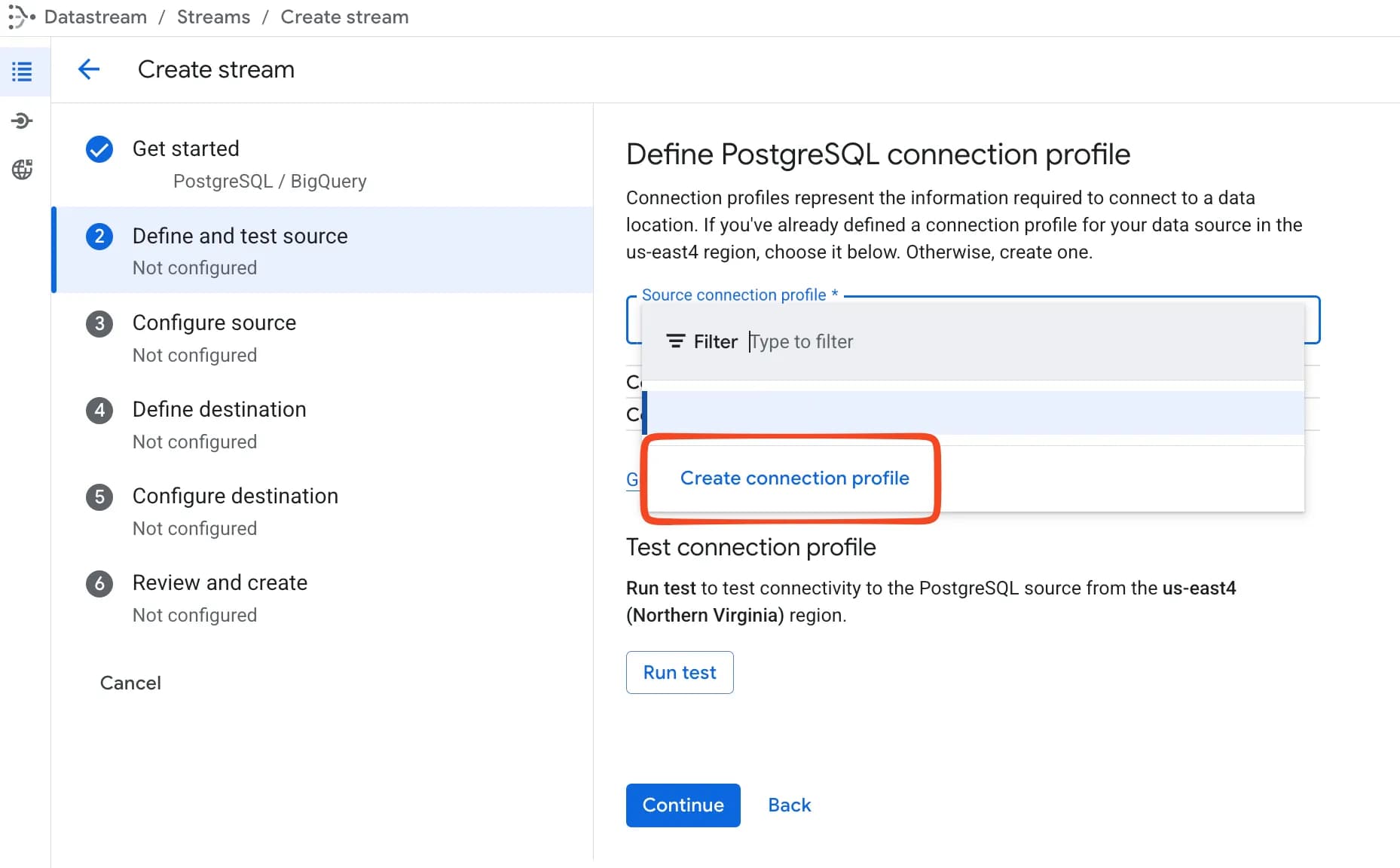
4. Create or select a connection profile for the source (in our case, PostgreSQL). If you already have one configured, select it from the list and proceed to step 5 of these instructions.
- 4.1 To create a new one, click Create connection profile.
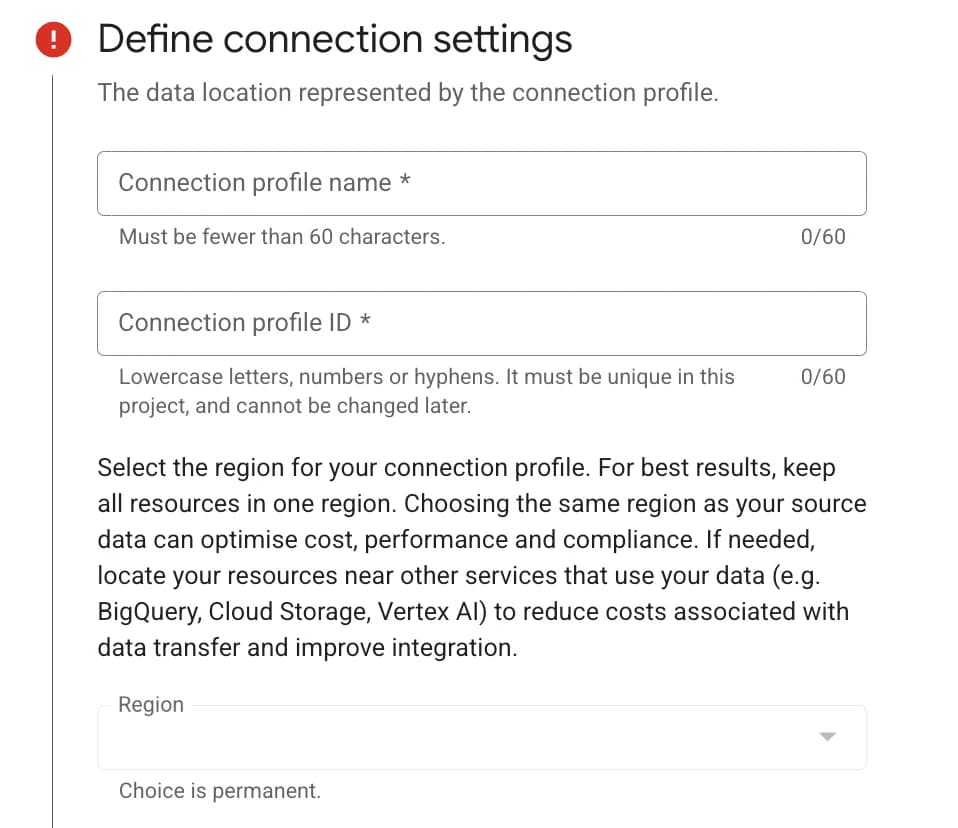
- 4.2 Fill in the required fields:
- Connection profile name — any name (up to 60 characters).
- Connection profile ID — auto-generated, but can be changed (lowercase letters, numbers, and hyphens only).
- Region — select the same region where you are creating the stream.
If the regions don’t match, the stream will not be created. The region choice is irreversible after saving. This is important if you’re using a previously created connection profile.
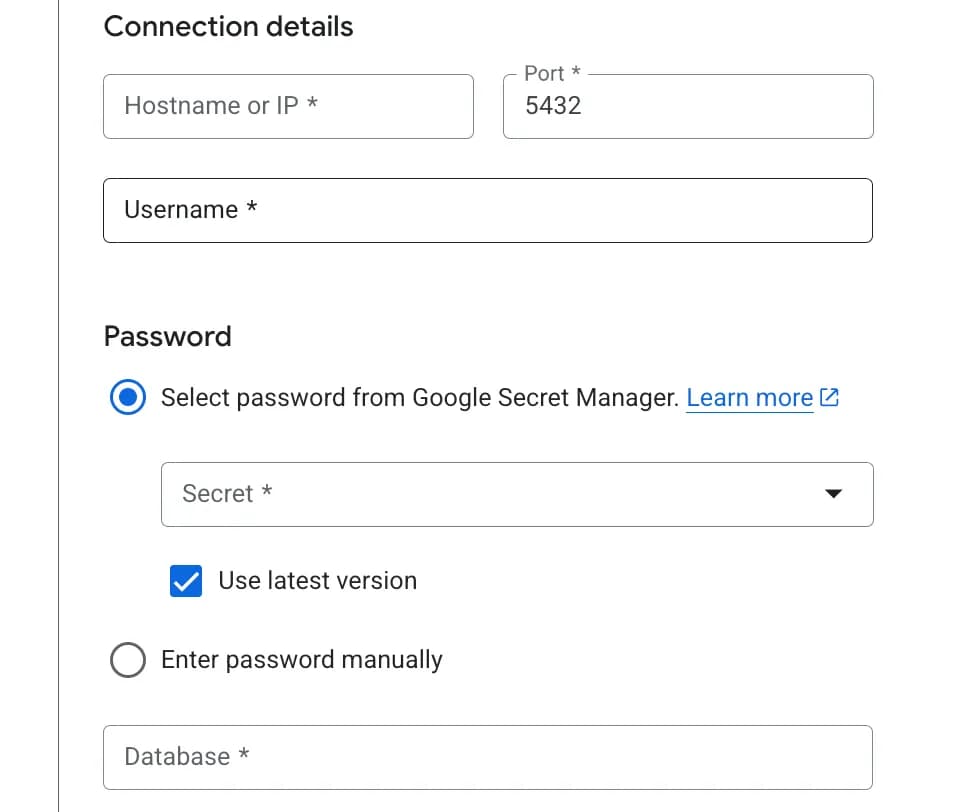
- 4.3 Fill in the connection parameters:
- Hostname or IP — the address of your PostgreSQL server.
- Port — typically 5432.
- Username — a user with replication privileges (created during the prerequisites step).
- Password — can be stored in Google Secret Manager (recommended) or entered manually.
- Database — the name of the database to replicate.
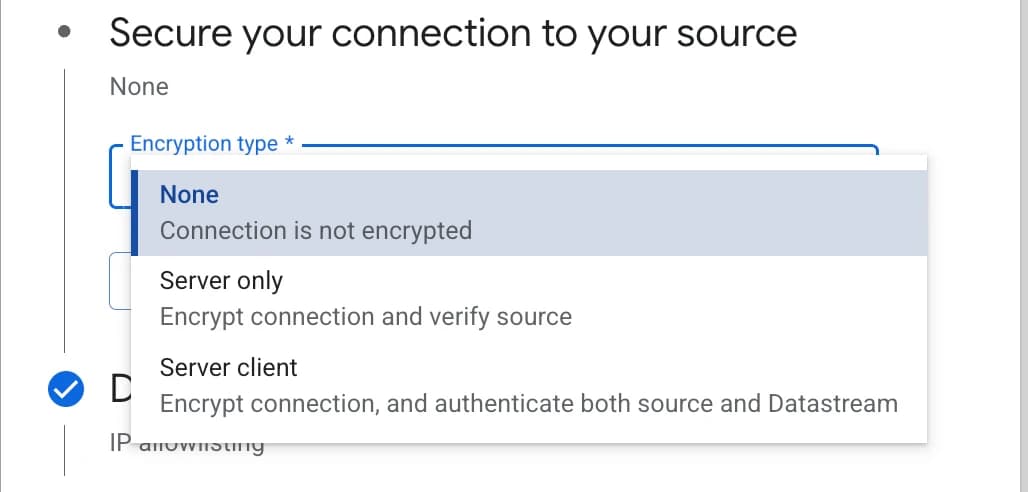
- 4.4 Select encryption type:
- None — no encryption (not recommended).
- Server only — encrypts the connection and verifies the server certificate. Requires a Source CA certificate (a Certificate Authority certificate in PEM format) and a Server certificate hostname — the server hostname for SSL certificate validation.
- Server client — encrypts the connection and authenticates both parties (the most secure option). Requires three PEM-format certificates:
- Source CA certificate — a Certificate Authority certificate for server verification,
- Source client certificate — the certificate Datastream uses to authenticate with the server,
- Source private key — the private key for the client certificate (unencrypted, PKCS#1 or PKCS#8).
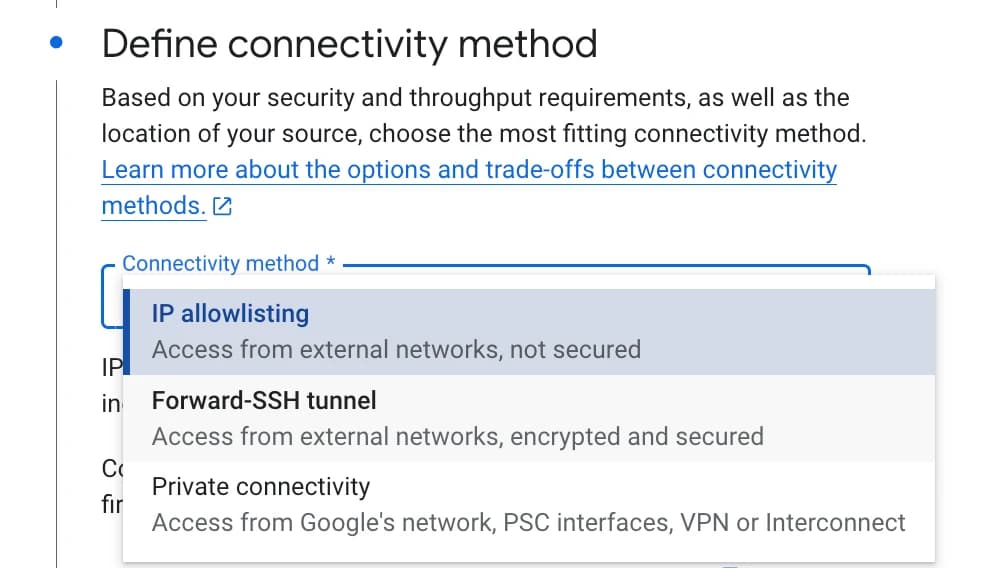
- 4.5 Select the connectivity method (how Datastream will connect to PostgreSQL):
- IP allowlisting — access from external networks, unprotected (the simplest option for testing).
- Forward-SSH tunnel — access from external networks via an encrypted SSH tunnel.
- Private connectivity — access via Google’s private network (VPN or Interconnect) — the most secure option for production.
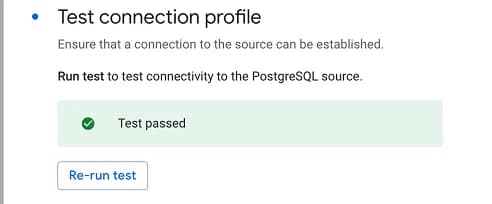
- 4.6 After filling in all settings, run the connection test (errors will show their cause if any). If the test passes, proceed.
5. Configure the source — PostgreSQL.
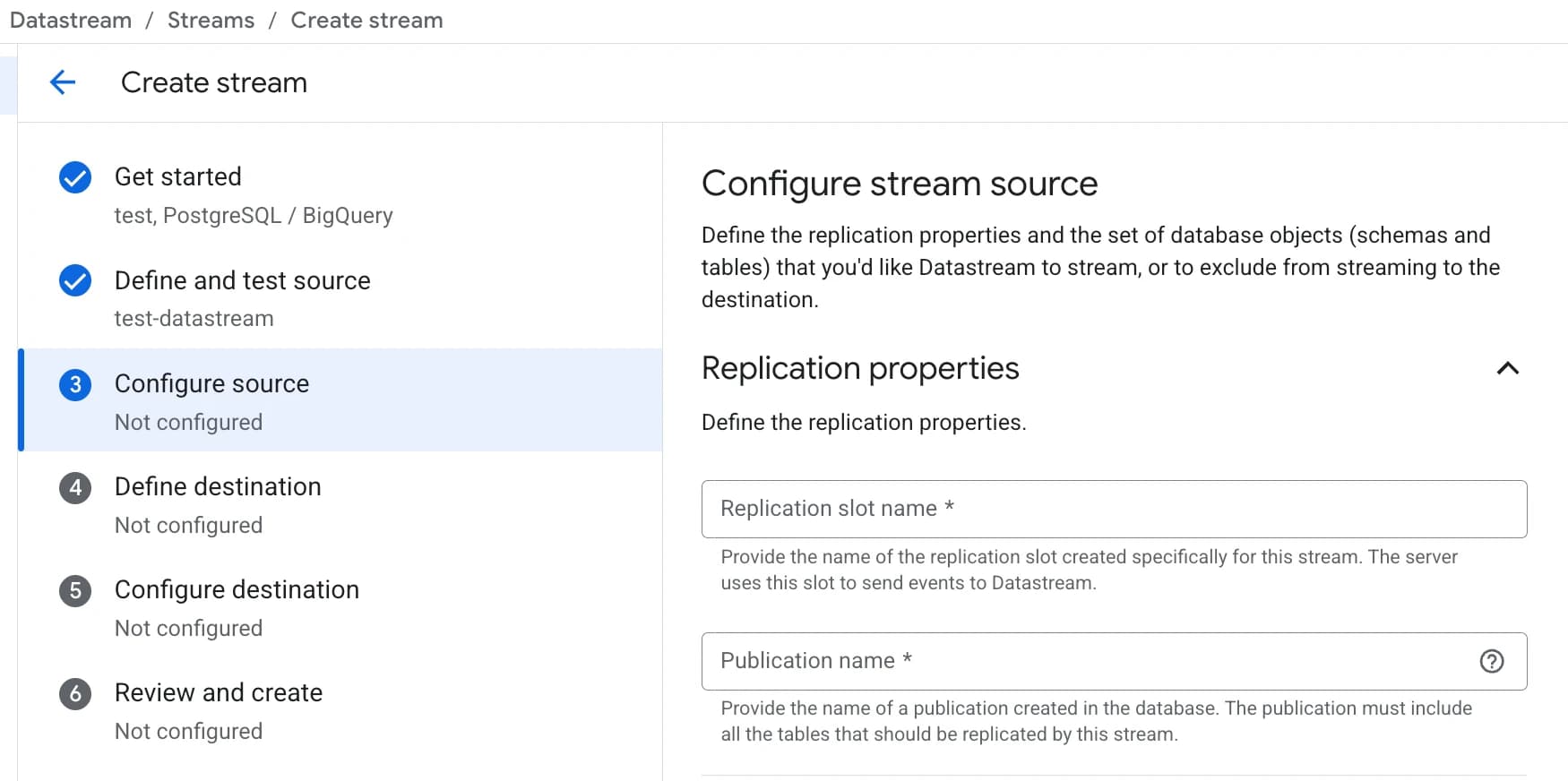
- 5.1 In the section Replication properties specify the names of objects created during the PostgreSQL preparation step:
- Replication slot name — the name of the replication slot you created in PostgreSQL with the command
SELECT
PG_CREATE_LOGICAL_REPLICATION_SLOT(...)
The server uses this slot to send changes to Datastream. - Publication name — the name of the publication created in PostgreSQL with the command
CREATE PUBLICATION ....
The publication defines which tables will be replicated by this stream.
- Replication slot name — the name of the replication slot you created in PostgreSQL with the command
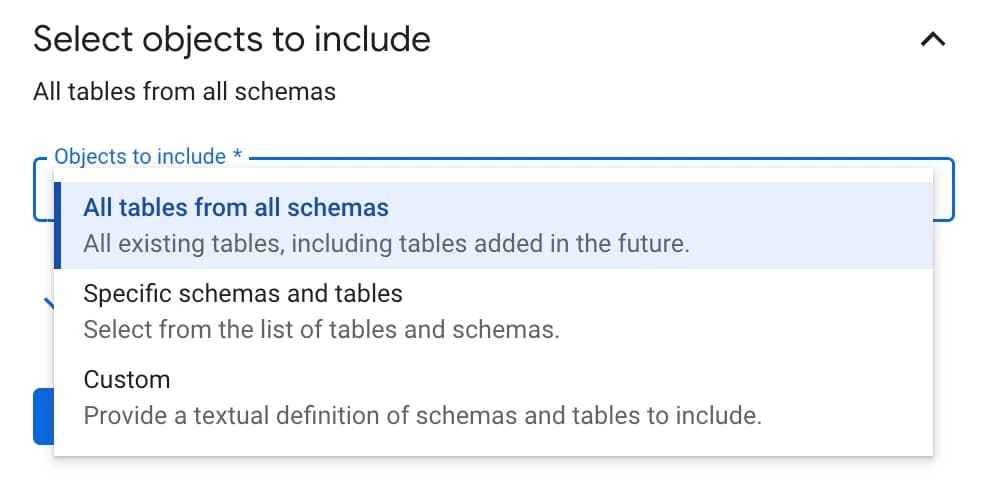
- 5.2 In Select objects to include select the tables to replicate:
- All tables from all schemas — all existing tables from all schemas, including tables that will be added in the future.
- Specific schemas and tables — select specific schemas and tables from the list.
- Custom — manually specify a list of schemas and tables.
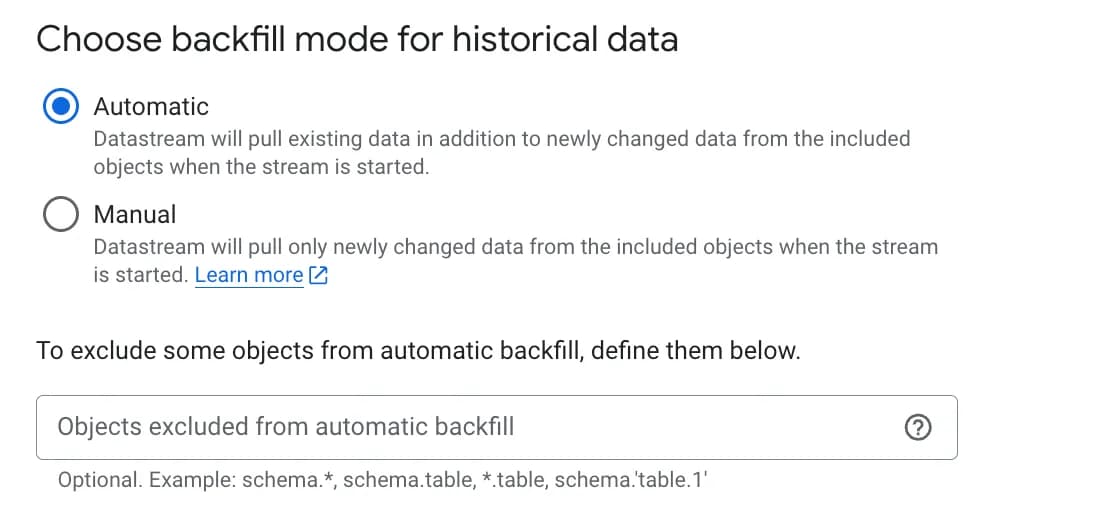
- 5.3 Show advanced options (optional):

- Choose backfill mode (initial data fill) — how to populate historical data:
- Automatic — Datastream will automatically load all existing data when the stream starts.
- Manual — Datastream will only stream new changes; historical data must be loaded separately.
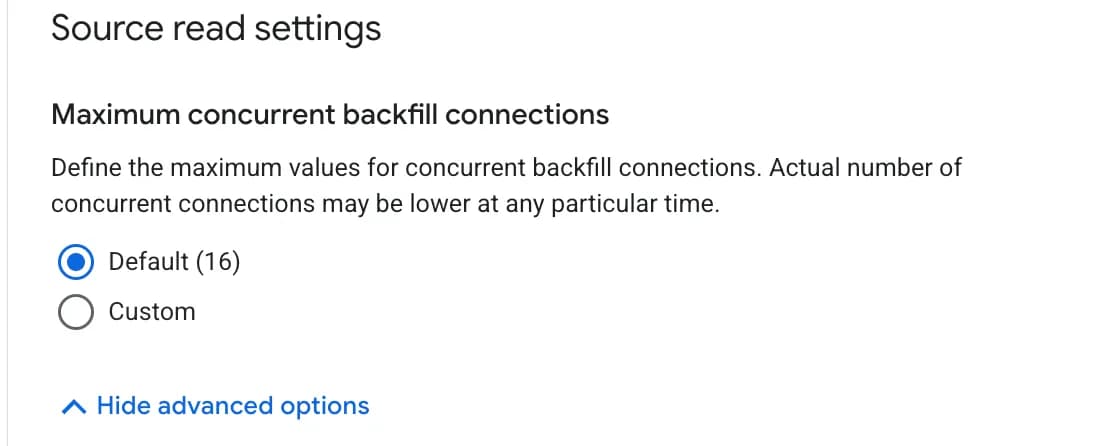
- Maximum concurrent backfill connections — how many parallel connections to use for backfill (default: 16). More connections = faster loading, but more load on the database.
- 5.4 After filling in, click Continue.
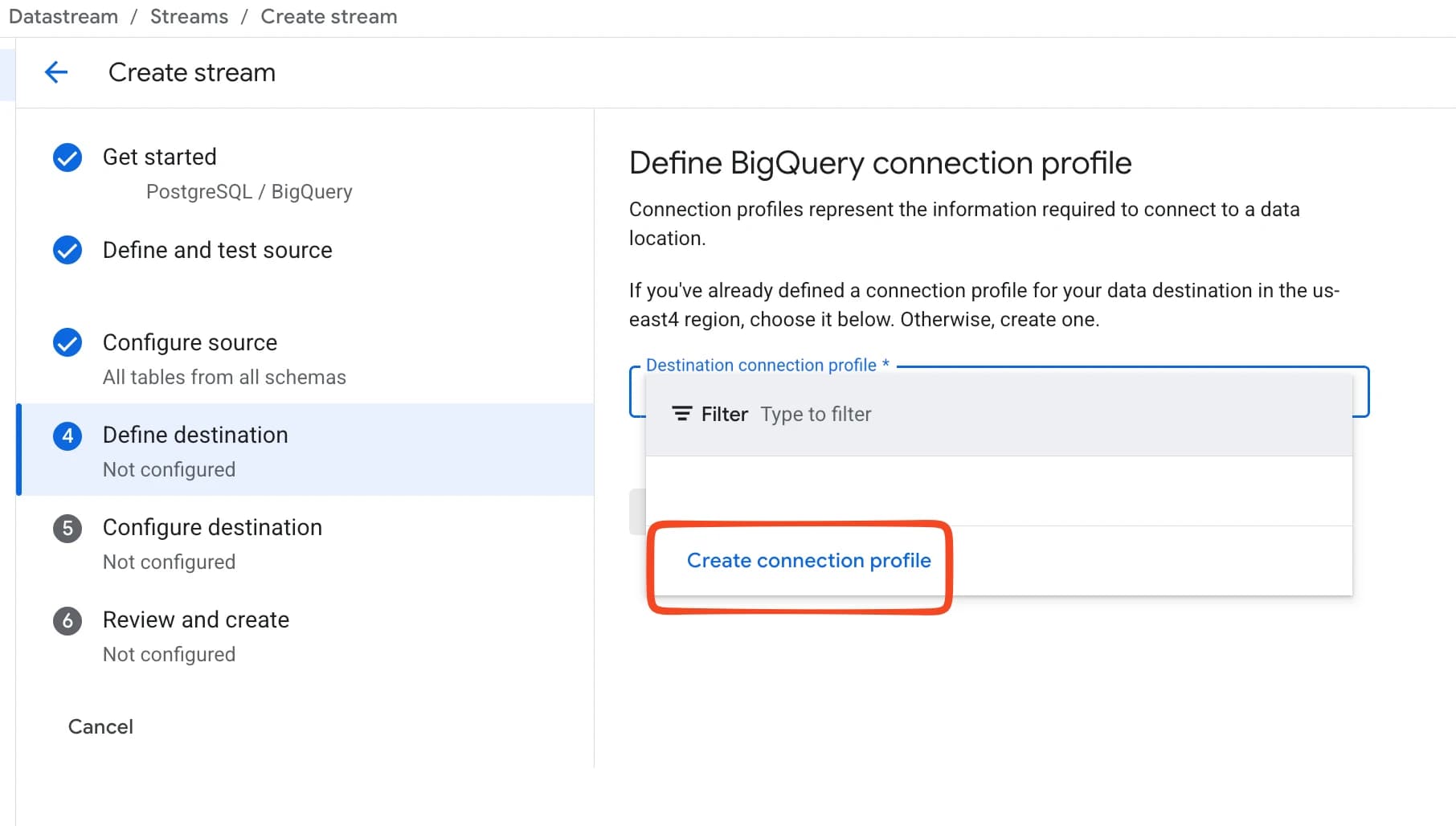
6. Create or select a connection profile for storing data in BigQuery. If you already have one configured, select it from the list and proceed to step 7 of these instructions.
- 6.1 To create a new one, click Create connection profile.
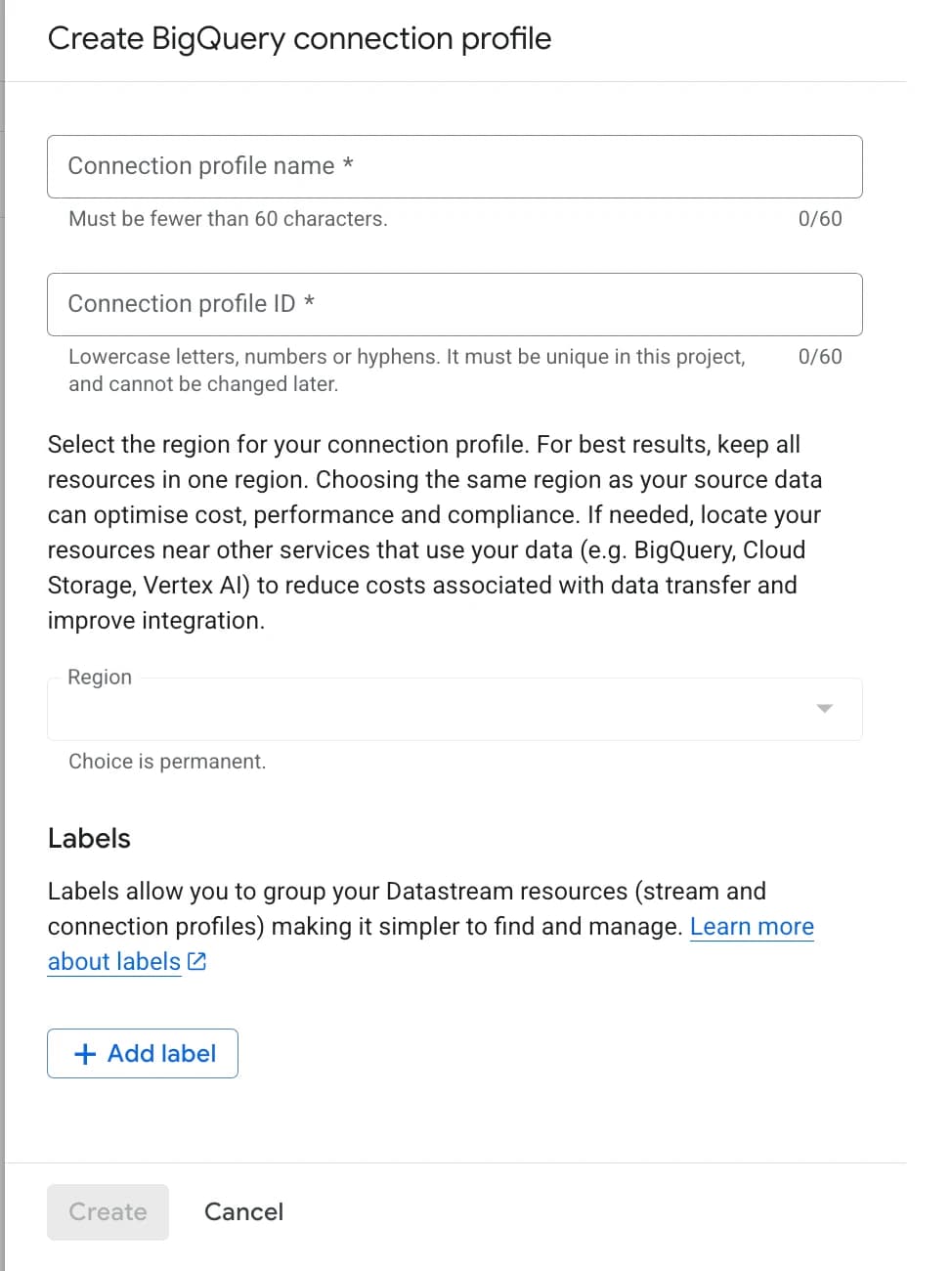
- 6.2 Fill in the required fields:
- Connection profile name — any name (up to 60 characters).
- Connection profile ID — auto-generated, but can be changed (lowercase letters, numbers, and hyphens only).
- Region — must be the same region where you are creating the stream.
If the regions don’t match, the stream will not be created. The region choice is irreversible after saving. This is important if you’re using a previously created connection profile.
- Click Continue.
7. Configure the write settings for BigQuery:
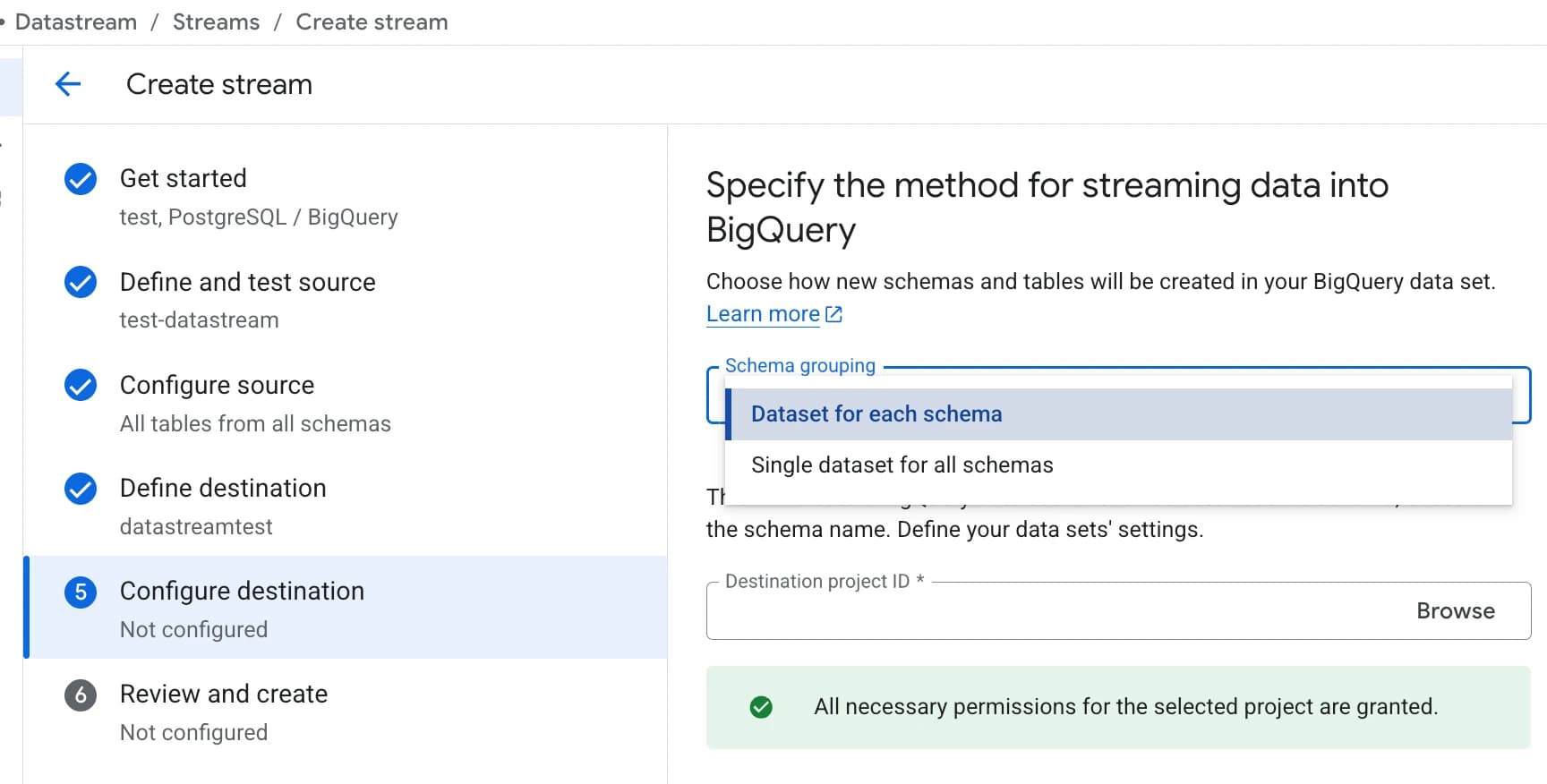
- 7.1 Select how corresponding datasets will be created in BigQuery:
Dataset for each schema — each PostgreSQL schema becomes a separate dataset in BigQuery (e.g., schema sales → dataset sales). Useful when your schemas are clearly separated by function.
Single dataset for all schemas — all tables from all schemas go into a single dataset, with table names composed as schema_table (e.g., sales_orders). Simpler for small databases.
Dataset location (dataset region)
Select the region where data will be stored in BigQuery. The same region where the stream was created is recommended.
Name prefixes (optional)
Optional but useful: you can add a prefix to dataset names to distinguish them from other datasets in BigQuery. The prefix is added to the beginning of the dataset name.
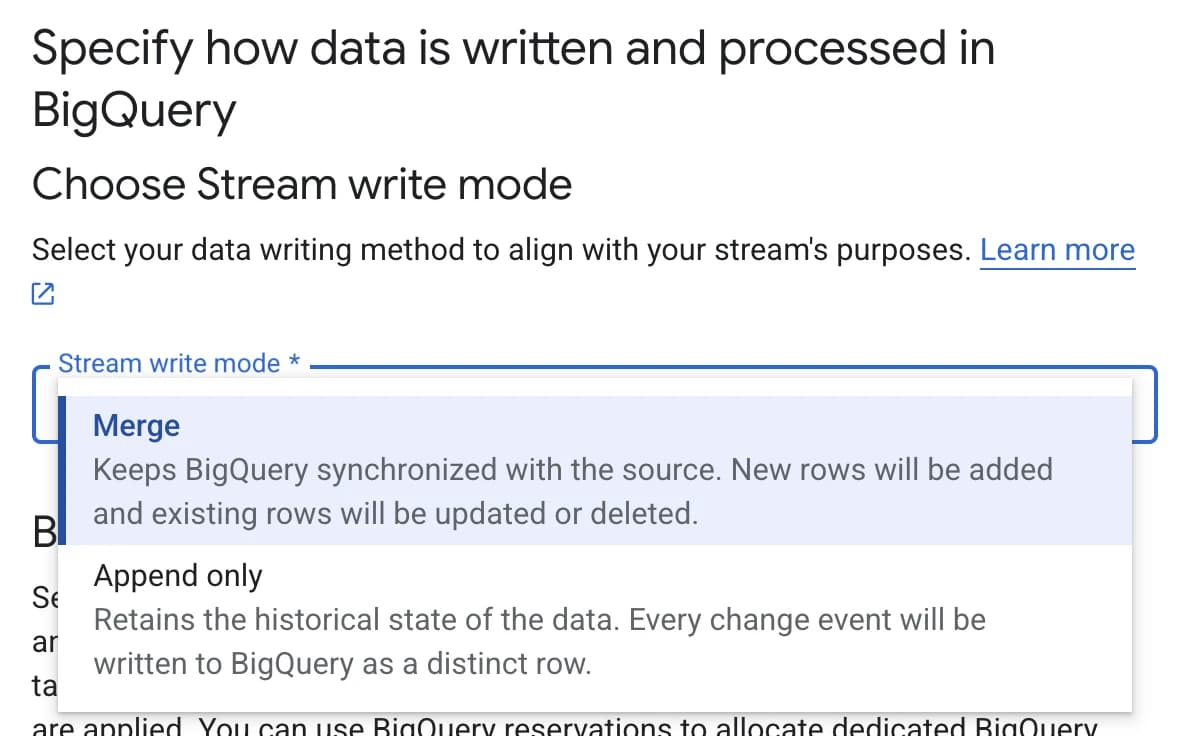
- 7.2 Choose Stream write mode:
- Merge — BigQuery will stay in sync with the source: new rows are added, existing ones updated, deleted ones removed. Suitable when you need a current copy of the database. Works only for tables with a primary key; tables without a PK automatically operate in append-only mode.
- Append only — each change is written as a separate row. The full history of changes is preserved.
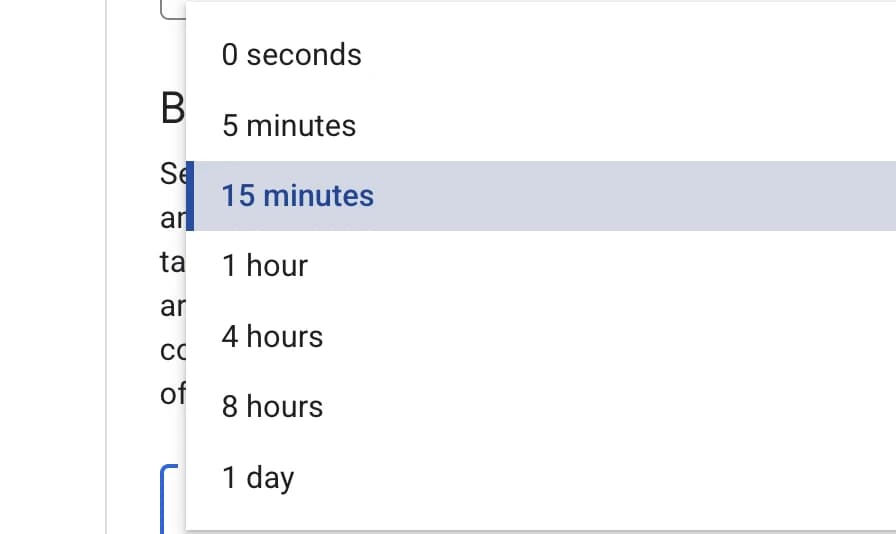
- 7.3 Select data staleness limit — defines how “fresh” the data in BigQuery will be, meaning BigQuery guarantees that accumulated changes from the source are applied at least once within this interval (in the documentation this parameter is called max_staleness).
How it works:
Datastream continuously streams changes into the write-optimized storage of the BigQuery table (essentially a “change buffer”), and BigQuery periodically runs a background apply job that merges these changes into the main (baseline) table.
What this means for your queries:
If a query runs within the max_staleness window after the last merge — BigQuery returns the table as of that merge (the data may be a few minutes behind reality, but the query is cheap and fast because it reads the already-merged table).
If a query falls outside the max_staleness window — BigQuery is forced to do a runtime merge on the fly, combining the baseline table with accumulated changes at query time. Data is up-to-date, but the query is slower and more expensive.
A special case: when max_staleness is 0 (the “0 seconds” option in Datastream), every query performs a runtime merge, because the change buffer is never considered stale in advance. This gives the freshest data but results in the most expensive queries.
In summary, a lower max_staleness value gives fresher data, but more background apply jobs (or runtime merges) — meaning higher cost. Google provides a special formula for determining max_staleness.
Possible update frequency: from 0 seconds to 1 day.
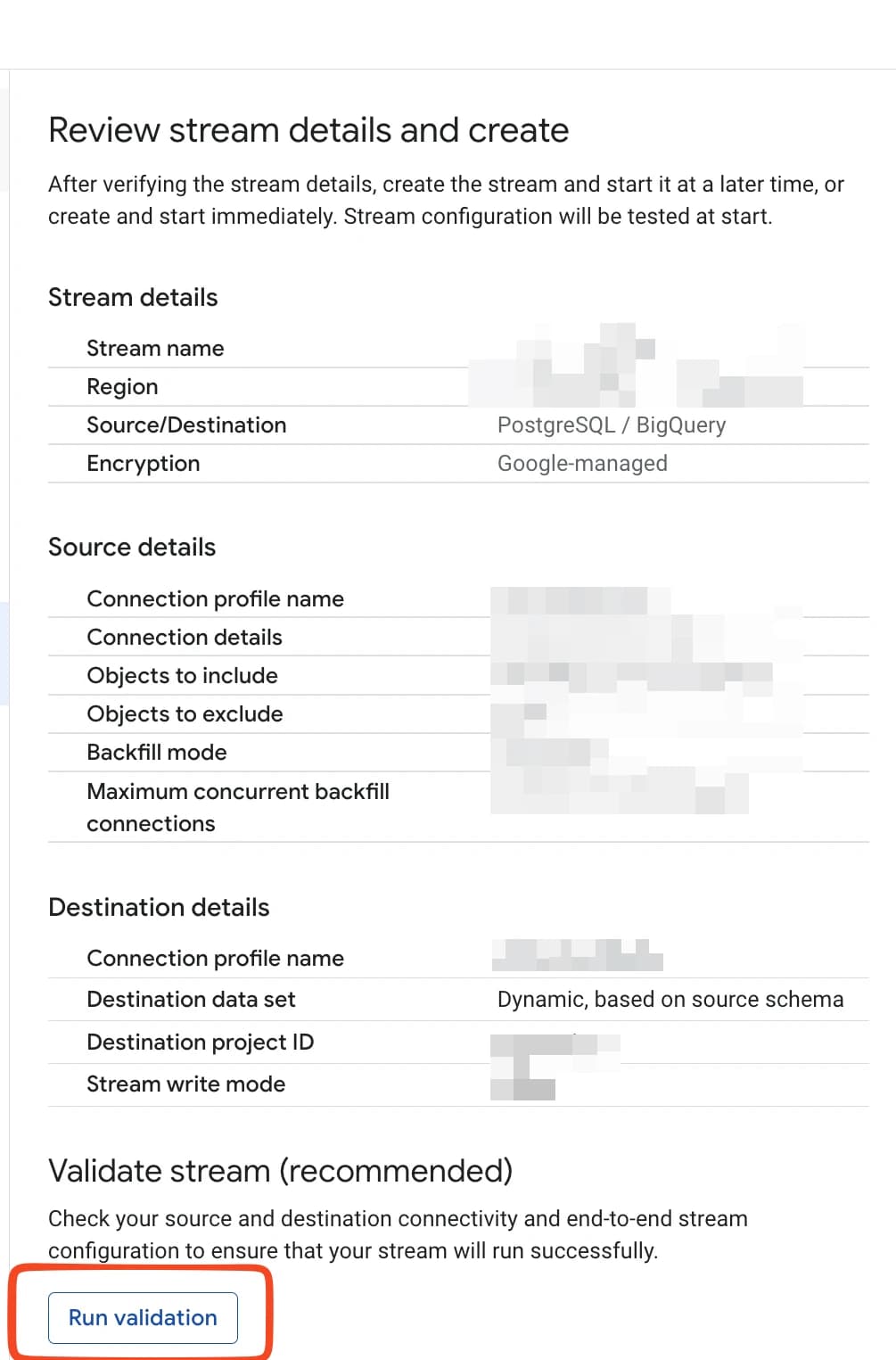
8. At the end of the setup you will see a screen with all your entered values plus the option to validate the connection for errors using the Run validation.
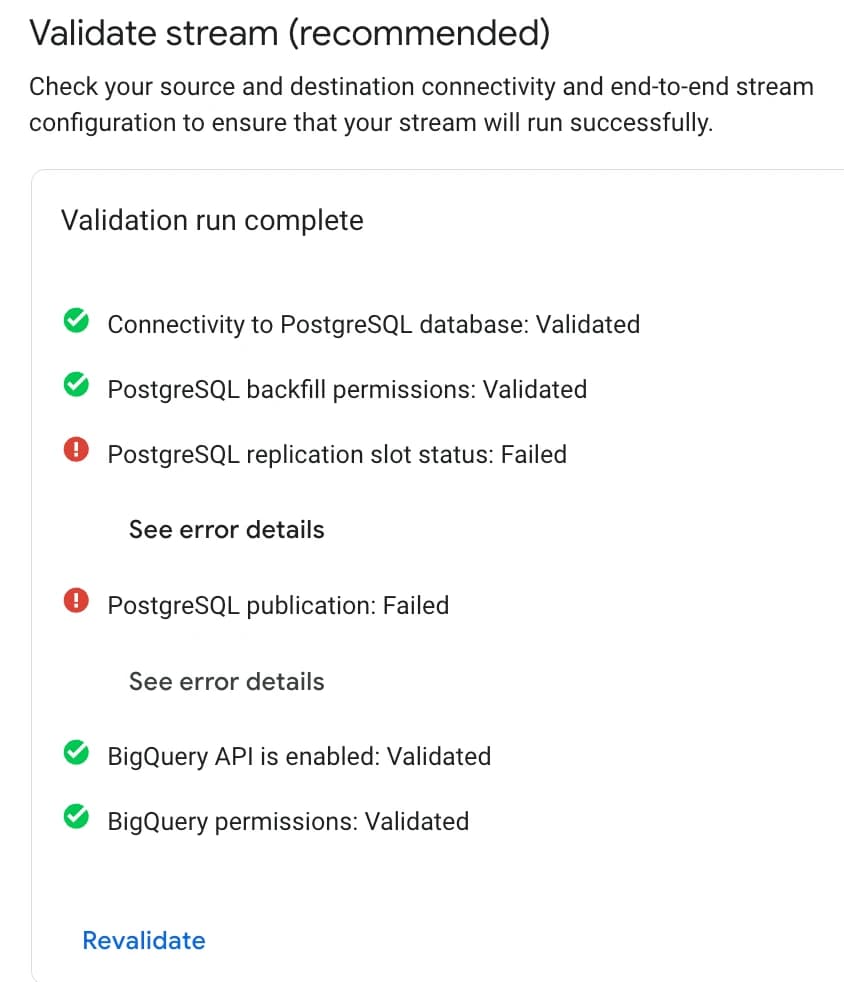
If there are configuration issues, they will appear in a list along with a more detailed description of each problem.
How to verify Datastream is working
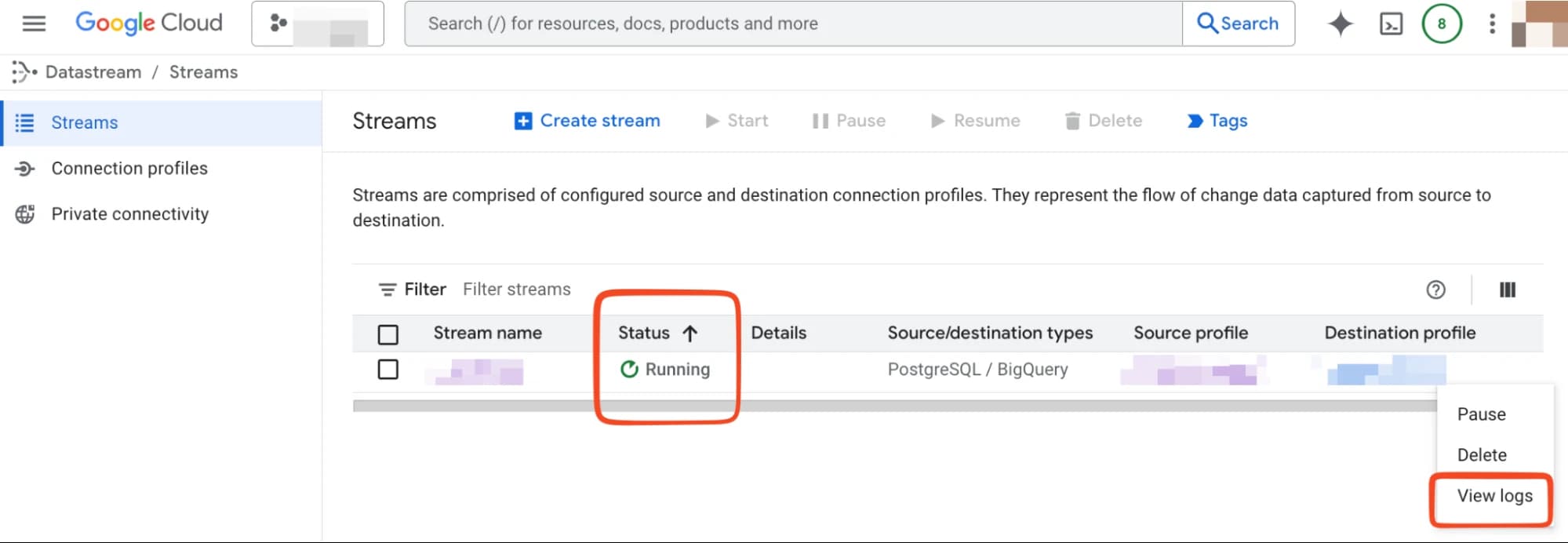
Logs work differently than in Data Transfer — on the streams page you can see the stream status (Running / Paused) and a View logs button, which shows nothing during an active export.
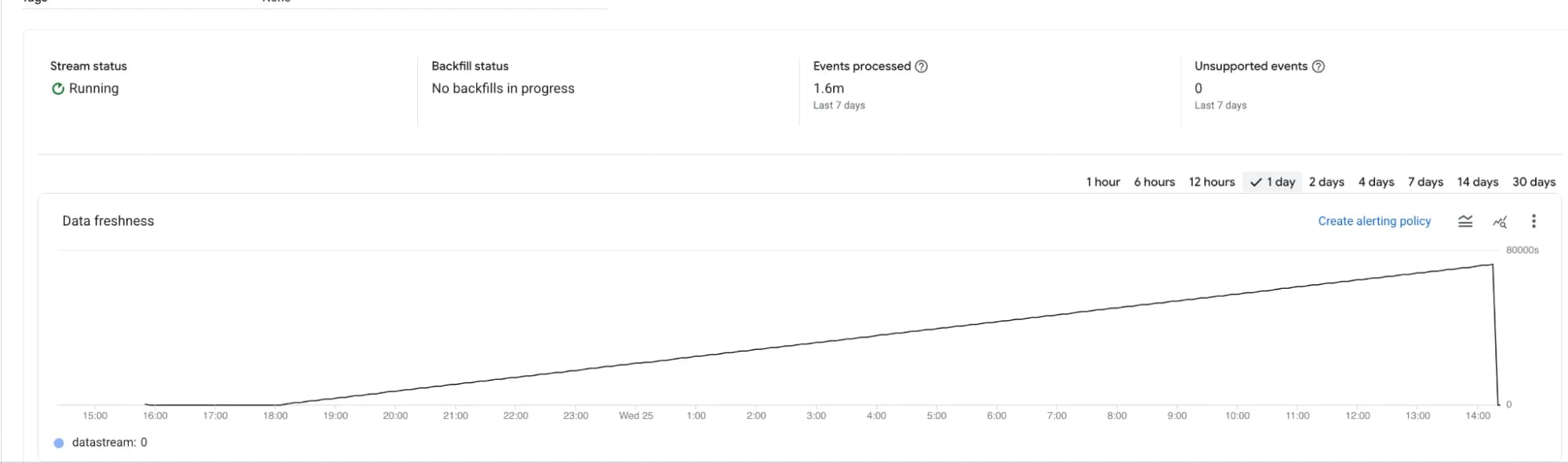
More useful information can be found in the stream dashboard, which opens by clicking on its name. There you can see the backfill, the number of processed events, and the Data freshness — how fresh the data currently is in BigQuery relative to the source.
How much does Datastream cost
The following covers Google Cloud service costs only; as with Data Transfer, there may be additional costs on the source side (e.g., AWS egress costs).
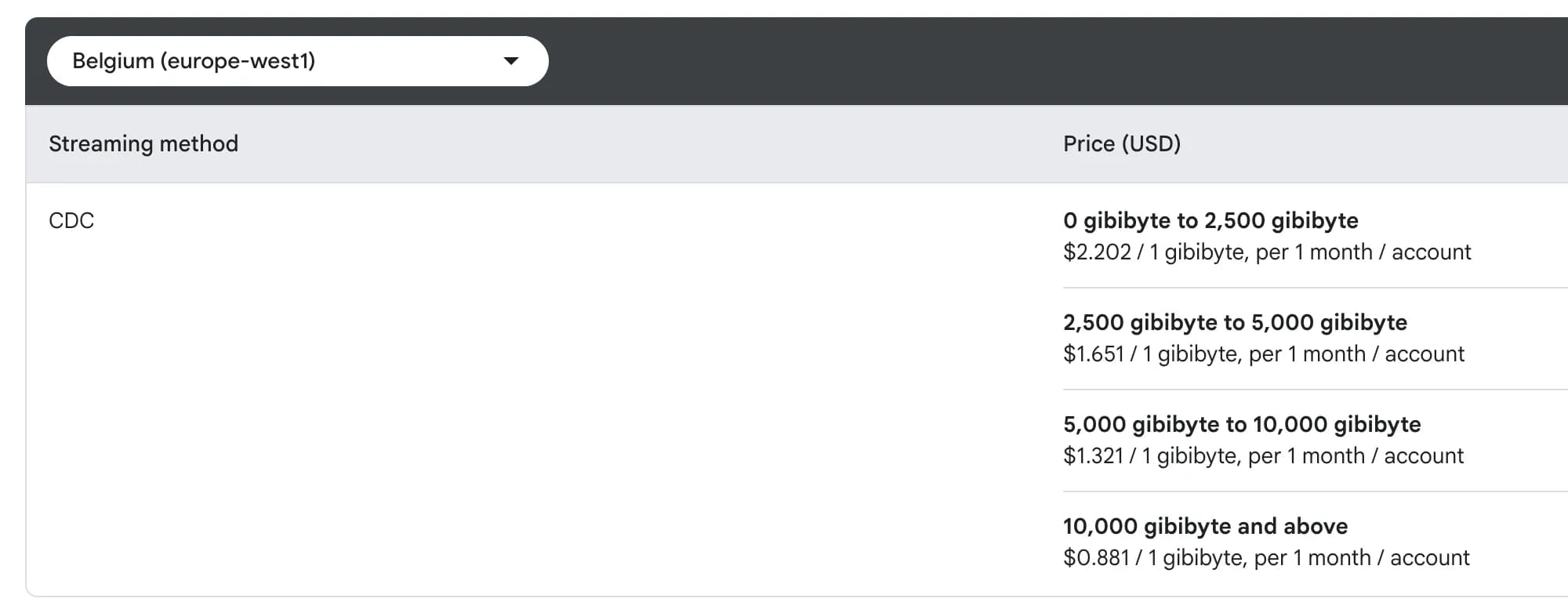
- Datastream CDC — charges for continuous change streaming, billed by volume of transferred data (GiB). Pricing depends on the region and volume, with tiered pricing that includes discounts at higher volumes.
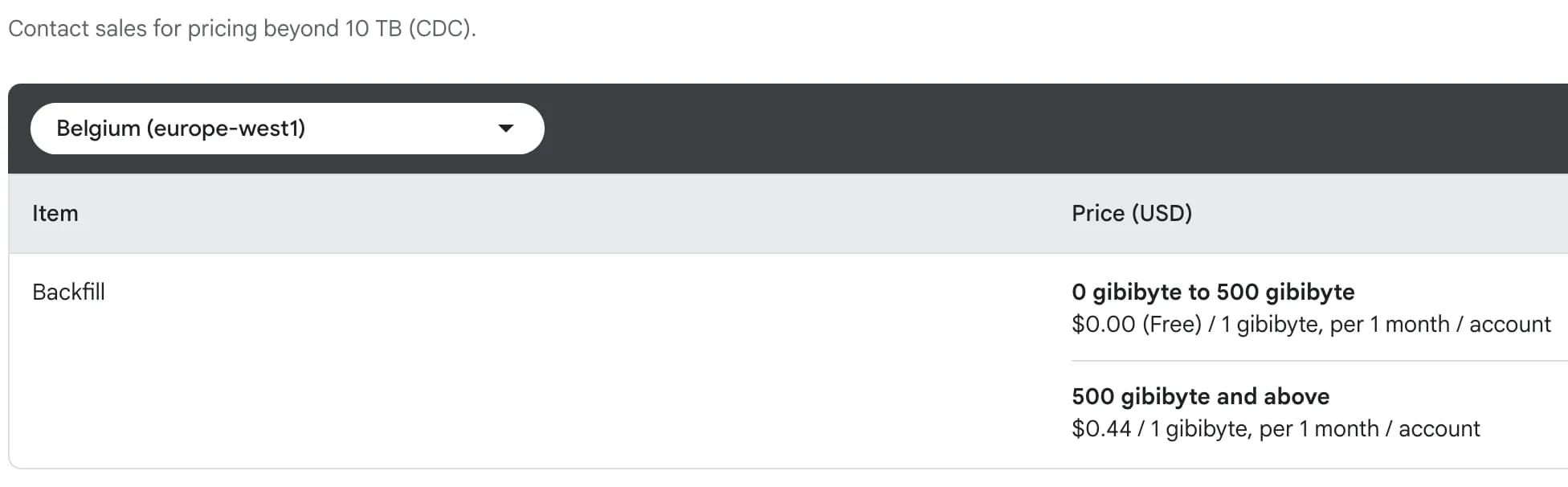
- Datastream Backfill (initial historical data fill) — billed separately from CDC. The first 500 GiB per month is free; beyond that it is billed. This means that for small datasets, the initial backfill will be free.
- BigQuery CDC Processing — the cost of compute operations that BigQuery performs to synchronize data. This is the most unpredictable cost component and one worth examining separately. It includes three types of jobs:
- Background apply jobs — background merge operations that apply accumulated changes within the max_staleness. Run regularly and read the entire baseline table (partitioning and clustering are not used).
- Query jobs — regular queries within the max_staleness, reading the baseline table with partitioning and clustering support.
- Runtime merge jobs — queries outside the max_staleness, which must perform a merge on the fly. These also scan the entire table.
What this means in real money: - A low max_staleness value on a large table can be expensive — each background apply job will read the entire table. Google’s recommendation on choosing max_staleness.
- By default, these operations are billed under the on-demand model ($6.25 / 1 TiB processed). ).
- BigQuery Storage — the standard cost of storing data in BigQuery (same as with Data Transfer); regardless of how you load data, this amount will always be the same.
The following is an approximate calculation. Real figures depend on the number of columns in the table, data types, change patterns (UPDATEs vs INSERTs), number of primary keys, and schema complexity. Before going to production, always test with your real data while monitoring the billing report.
Let’s calculate the full cost for our test dataset (~150 MB, 9 tables). Assume the source generates 10 MB of changes per day (≈300 MB/month).
- Datastream Backfill: 150 MB — within the free 500 GiB → $0.
- Datastream CDC: 300 MB ≈ 0.3 GiB × $2.202/GiB = ~$0.66/month (price for europe-west1).
- BigQuery CDC processing: background apply jobs read the entire baseline table on every merge. Assume max_staleness = 15 min → 96 runs/day. Each run scans the table and change buffer with merge overhead; actual processed data volume may be 1.5–3× the table size.
For our table at 0.15 GB, that’s ~96 runs × 30 days × 0.3 GB ≈ 864 GB processed/month ≈ 0.84 TB × $6.25 = ~$5.25/month on on-demand BigQuery. - BigQuery Storage: ~0.15 GB × $0.02/GB = $0.003/month (well within the 10 GB free tier)
Total for a small dataset: ~$6/month.
Key detail: the “3. BigQuery CDC processing” component scales with table size and merge frequency.
So, which one should you choose?
If after reading this overview you want to give it a try — start with a test slice of real data.
A quick decision rule:
- Data updates once a day or less → Data Transfer.
- Tables are small or medium-sized (up to a few GB), updates every 15–60 minutes are acceptable → Data Transfer.
- You need real-time or close to it → Datastream.
- Large table with many small changes + you need freshness in hours, not days → Datastream (Data Transfer falls short here due to constant full reloads).
- You need a history of changes → Datastream in append-only mode.
- Not sure → start with Data Transfer: easier to set up, easier to replace, more predictable cost, and Incremental mode — once it exits Preview — may eventually cover most use cases.
It's also worth looking at BigQuery storage costs separately, as they add on top of the cost of both tools and can significantly affect the final number.
And keep in mind that both services are actively evolving — for example, Incremental mode in Data Transfer is still in Preview, but once it's generally available, it may substantially shift how you choose between these two tools.
If you need help configuring things for your specific case — or your task is broader than just syncing two databases (collecting data from ad platforms, a CRM, or multiple sources at once) — our team can help you build a data pipeline and choose the right solution. Submit a request by filling out this form.
Comments
Share your thoughts and ask a question
Loading comments...